Pushing Root Certificate to a Device
There can be renewal or change of root certificate in the trust store. In such occurrences, the user can push the root certificate to the desired endpoints to avoid the SSL handshake failure.
Steps to push a root certificate,
- Log in to AppViewX application with valid credentials.
- Click the menu button located in the upper left corner of the screen.
The left navigation pane appears.
- Click CERT+.
The CERT+ left navigation pane appears.
- Expand CERTIFICATE ACTION.
- Select Push to Device, and then Intermediate.
The Root Certificate page appears.
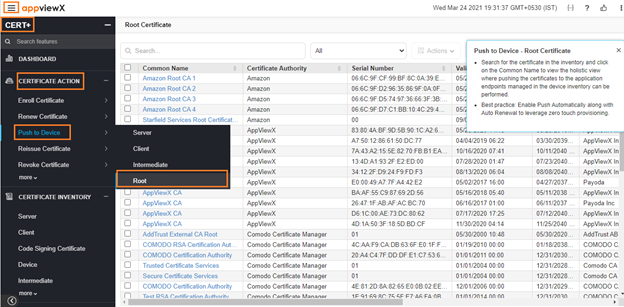
- In the Certificates list view, click the Common Name of a certificate
you want to add a connector to.
The holistic view appears.
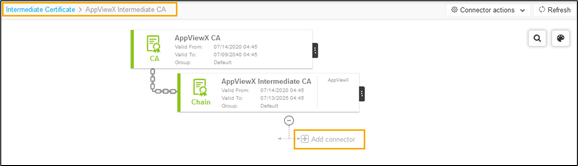
- Click Add Connector in the holistic view page.
The Add Connector page appears.
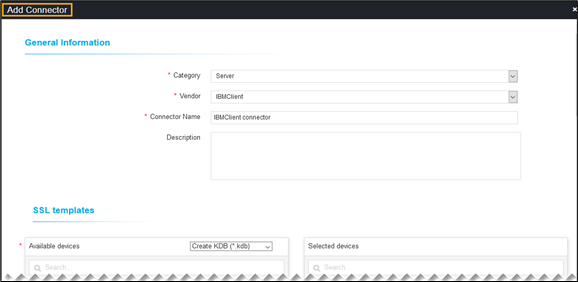
- In the General Information section, select/enter the details as follows.
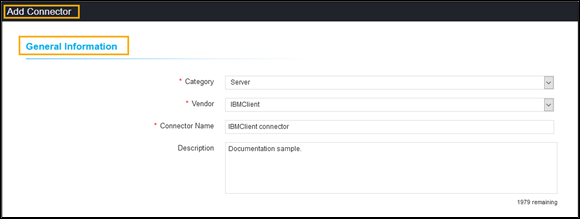 The following table describes the options available in the general information section:
Fields Description Category Select the category from the dropdown list. Connector Name Enter the desired connector name. Vendor Select the vendor from the dropdown list. Description Enter a description in this field.
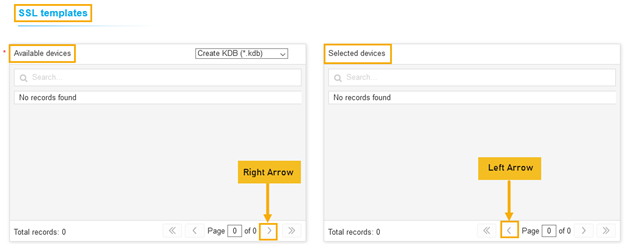
Note: You can enter a maximum of 2000 words in the field. - In the SSL Template section, select a device from the
Available devices and click the right arrow mark to
move the device to the Selected devices list.