Create Execution List
This feature helps you add a list of IP addresses and/or Subnets to be excluded from a Network Scan Discovery. Unlike Rules (Provide Link to Discovery > Rules) that have provisions to exclude IP addresses post the discovery, this feature excludes the IP addresses/Subnets before the discovery is triggered.
To exclude certificates,
- Log in to the AppViewX application with valid credentials.
-
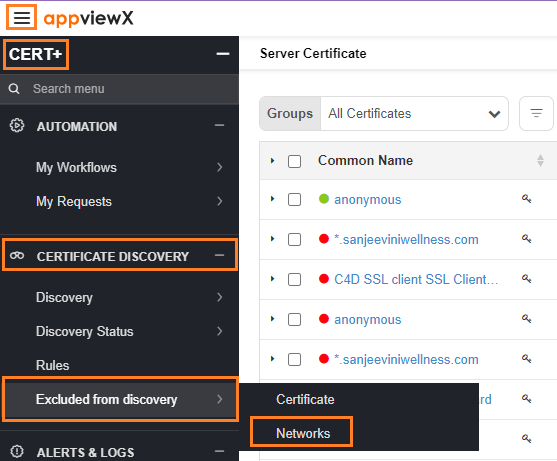
Click the menu button located in the upper left corner of the
screen.
The left navigation pane appears.
- Click CERT+. The CERT+ left navigation pane appears.
- Expand CERTIFICATE DISCOVERY.
-
Click Excluded from discovery > Networks.
-
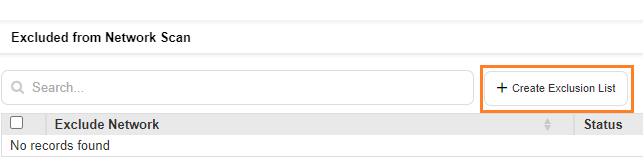
On the Network execution page, click on +Create Execution List to
exclude discovery from the network scan.
-
Enter the fields below to exclude Ips/subnets from being discovered by network
scan.
Field Description *Exclude List Name Enter the name of the list that needs to be excluded. *Exclusion By Select custom/upload from the dropdown list.
If upload is selected, then a new field *Upload File appears.
Note: Refer to the sample template to check the format and how the input (IP/Subnet) must be provided and upload the file.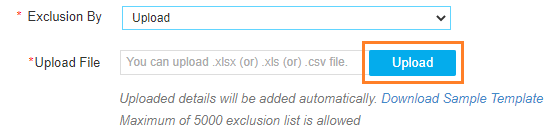
*Exclude List If custom is selected in the Execution By field, then enter a valid IP, subnet, IP range, or any combination of them.
Acceptable formats:
IP Address Format Example – 192.168.1.1,
Subnet Example – 192.168.1.1/24,
IP Address Range Example – 192.168.1.1 – 192.168.1.10.
Note: The asterisk (*) symbol indicates a mandatory field. - Once the fields are entered, click Add.
-
The table is populated with the values. All these IPs/Subnets will be excluded
from the network scan.

-
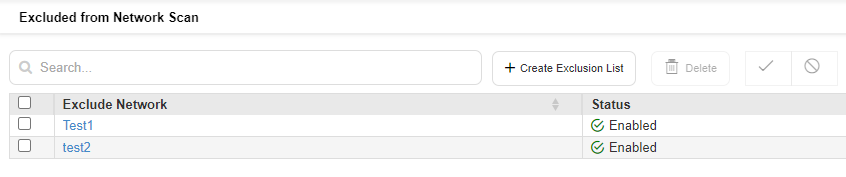
Click Save. The networks that are excluded from the network scan will be
listed as shown in the screen shot presented below. The exclusion list would
exclude the IP addresses/subnets from the current discovery operation.
Note: If an excluded IP address/Subnet was previously discovered and is already part of the inventory, the current discovery operation cannot change that. The user will need to manually delete the certificates related to that entry from the inventory.