Install Active Directory Certificate Services
-
Assign a static IP address for this host.
-
Give an appropriate computer name for the host, for example: <winaepserver>.
-
Add the host member of the domain (yourcompany.com) using an account that belongs to the Domain/Enterprise Admin group.
-
Open the Server Manager.
-
Click Add roles and features.
The Add Roles and Features Wizard opens.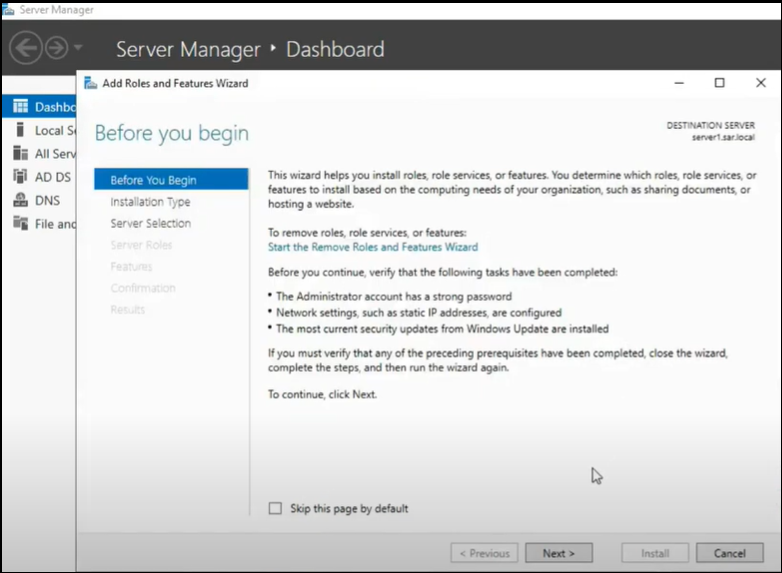
-
Click Next.
-
In Installation Type, select Role-based or feature-based installation, and click Next.
-
In Server Selection, select Select a server from the server pool, and click Next.
-
In Server Roles, select Active Directory Certificate Services.
-
Click Add Features when prompted to add required features.
-
Keep the default selections and keep clicking Next until you reach the Role Services page.
-
Select Certification Authority and Certification Authority Web Enrollment.
-
In the popup that appears, click Add Features to add IIS and its corresponding features.
-
Click Next until you reach the Confirmation page, and click Install.
-
Click Close when installation is complete.