Logging in using MFA:
-
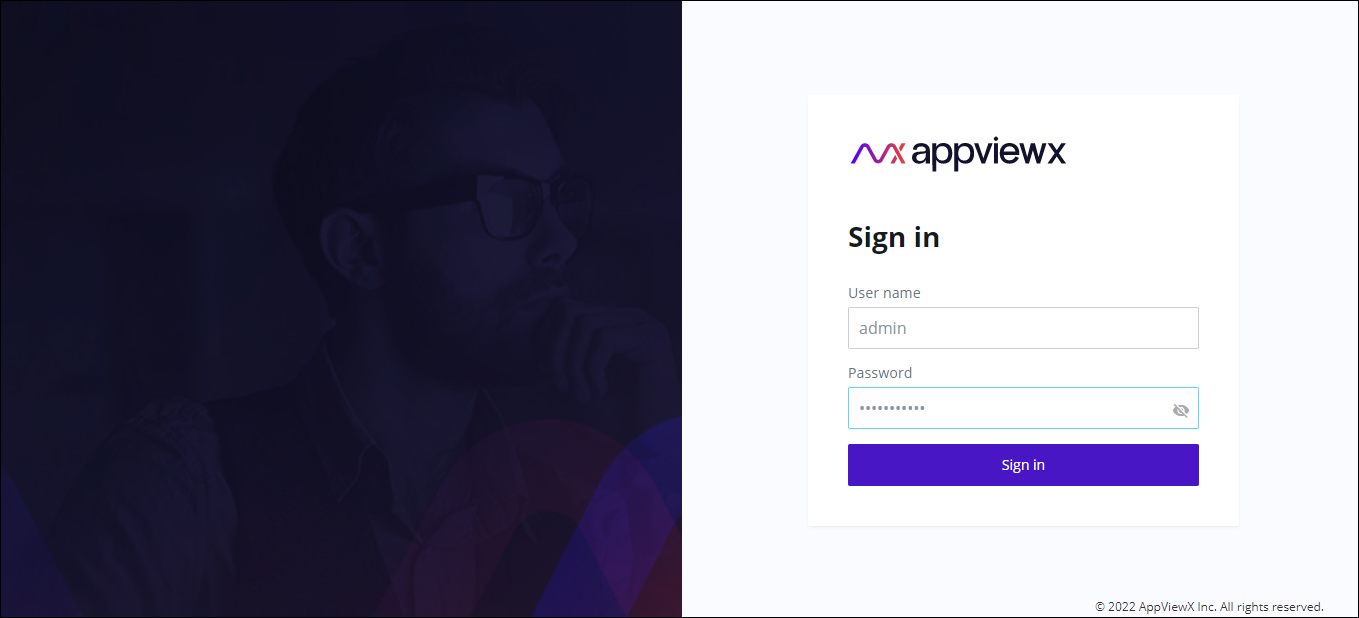
Log in using your user credentials (User name and
Password).
The AppViewX Sign in page is displayed.
-
Click Sign in.
The MFA system generates a random 6 digit numeric value and sends OTP to the registered user's Email ID.
-
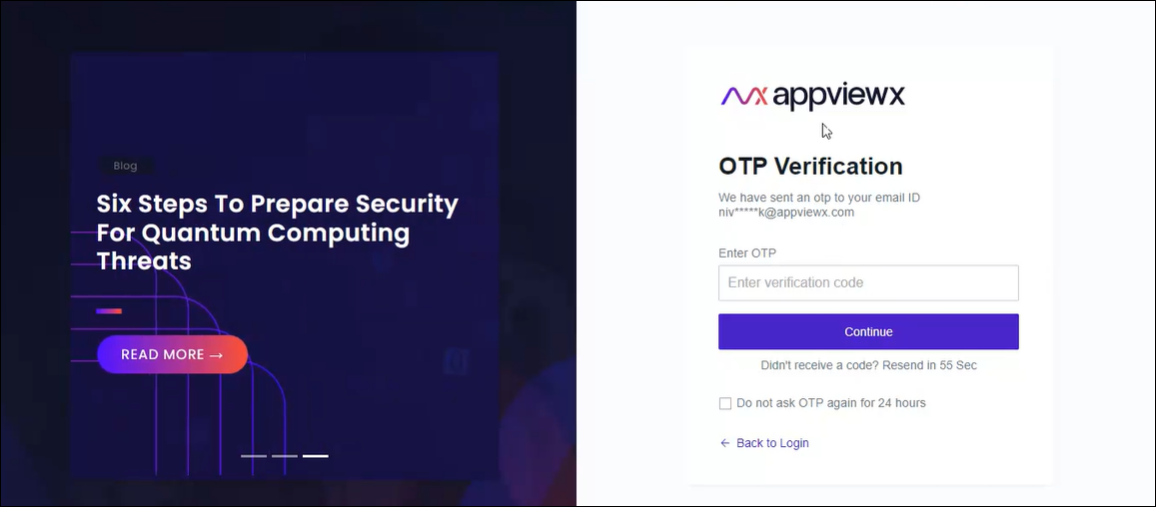
User authentication (OTP Verification) screen is
displayed.
-
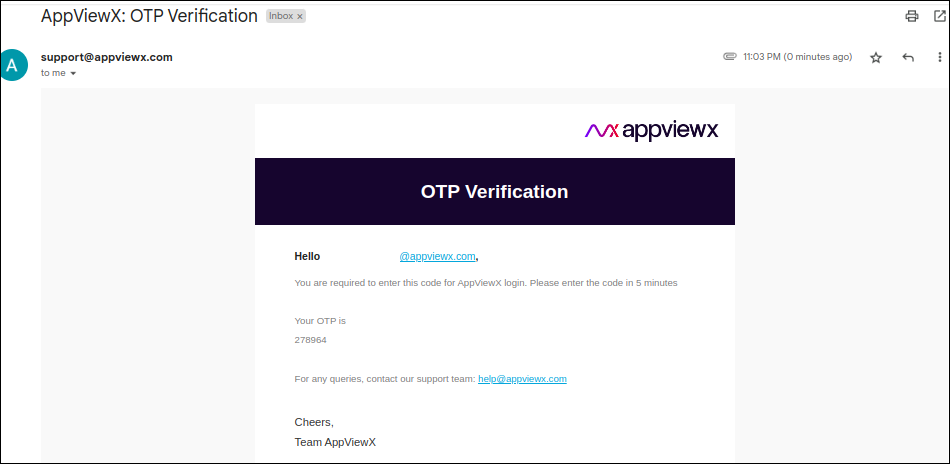
Enter OTP which is sent to your registered Email ID.
-
OTP Validation.
- OTP sent to Email will be valid only for next 5 min
- Users will be locked if wrong OTP is entered more than 5 times
- Once the user is locked for 15 min, an auto-generated Email is received asking to contact the administrator to unlock.
-
Resend OTP - MFA.
- Resend option will be enabled after 60 seconds
- Resend option will be available only 5 times for wrong attempt.
Note: Users can select Do not ask OTP again for 24 hours during login and disable OTP Verification for next consecutive logins for 24 hours. - Click Continue.
-
Change Password Screen is displayed for the users
logging in for the first time.
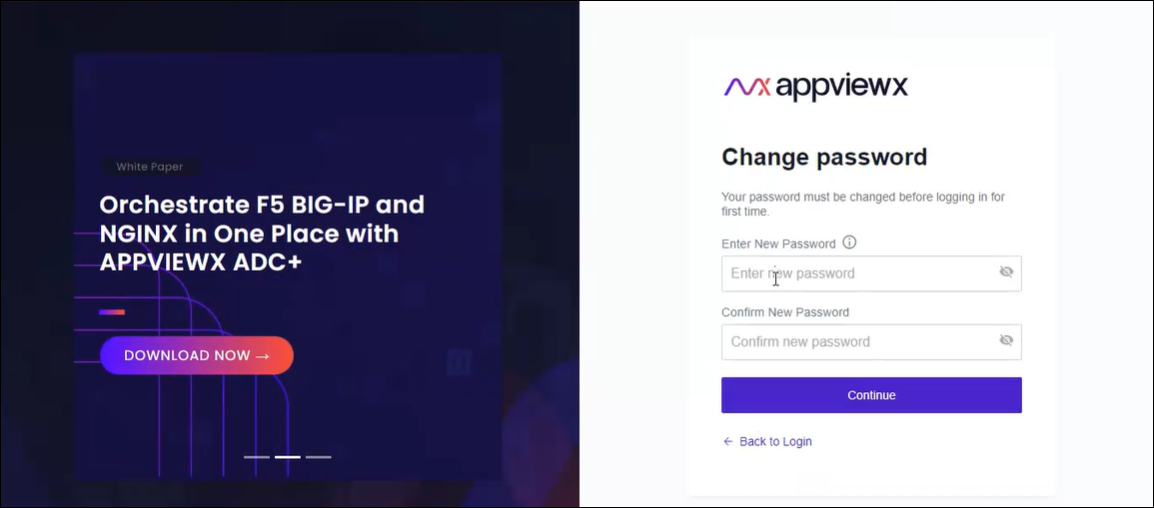
- Enter the details in the required fields.
- Click Continue.