Log in to the AppViewX application with valid credentials.
Click the menu button.
Select Menu > ADC+ > TRAFFIC MANAGEMENT >
Dashboards.
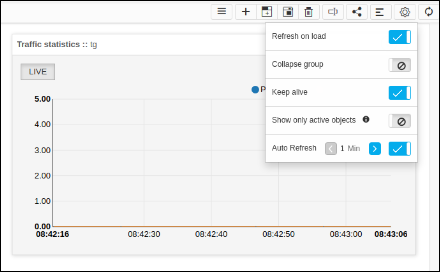
Click on the Settings icon.
Users can change the setting by clicking the corresponding slider.
Refresh on load - If this setting is enabled, each time
the dashboard loads, it will trigger the refresh call automatically to
load the latest data.
Collapse group - If this setting is enabled, all the
groups inside the widgets on the dashboard will display in collapsed
format by default.
Keep alive - If this setting is enabled, the auto session expiry
function will be disabled. Using this user can monitor the objects
without session timeout interruptions.
Show only active - If this setting is enabled, the objects of an
active device alone be displayed from the configured objects. It is
applicable only for Application view widget.
Auto refresh - If this setting is enabled, dashboard refresh call
will be triggered automatically in the given interval. Users can
configure the auto refresh interval.