Accessing Workflow Tasks
- Navigate to the Workflow page.
-
From the Workflow page, click Create New.
The design space is displayed with the workflow tasks listed in the menu on the left.
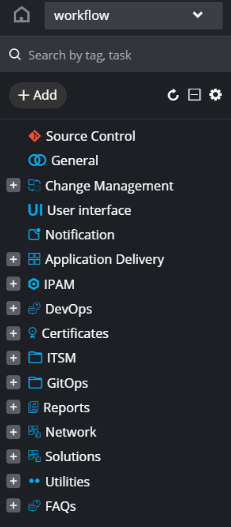
The following options are available in the Workflow Tasks folder menu:
Options Description Search Allows you to search for tasks by typing keyword(s) Add Allows you to add a new folder 
Refreshes the tasks folders menu 
Allows you to expand and collapse the task folders 
Allows you to hide folders from the workflow tasks menu and customize task sequence within a folder
Hiding a Task Folder
To hide a folder from the workflow tasks menu:
-
From the top right corner of the menu, click .
-
Click
 next to the folder you want to hide from the
menu.
next to the folder you want to hide from the
menu. 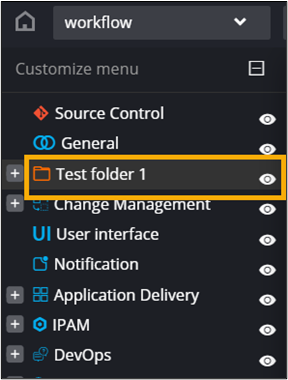
-
Click Save.
The folder will not be visible in the menu.
Reordering Task Sequence
To reorder the sequence of tasks within a folder:
-
From the top right corner of the menu, click .
- Select a folder from the menu.
- Hold and drag tasks to change their sequence in the folder.