Reissuing Server Certificate
To reissue a server certificate:
-
From the CERT+ main menu, under CERTIFICATE ACTION, select
Reissue Certificate >
Server.
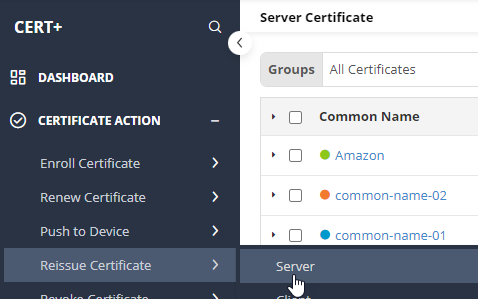 The Server Certificate page is displayed.
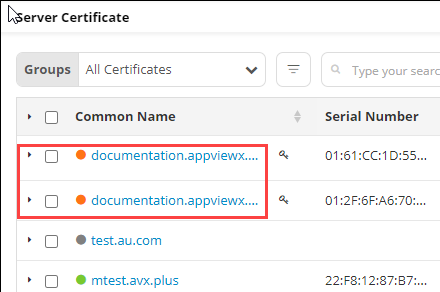
 - To reissue a certificate,under Common Name, select the required certificate name.
The certificate topology view for the selected certificate is displayed.
-
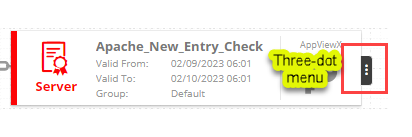
From the three-dot menu for the certificate, click Renew.
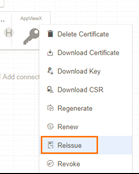 The Server Certificate > Reissue page is displayed.
On the Server Certificate > Reissue page, if required, you can edit the Subject Alternate Names. The Key Type, Bit Length, Vendor Specific Details, Attachments, Generic Fields, Vendor-Specific Details, and Custom Attributes can also be modified.
- Click Reissue.
- In the Reissue dialog box, enter the Reason for removal and any additional details as Comments.
- Click Yes.
The reissue process is initiated, as is displayed in the certificate topology view, alongside the connector
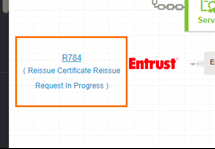 If the
Approval Required checkbox is enabled on the Certificate
Policy page, the request goes to the Approve and
Implementation stages.
If the
Approval Required checkbox is enabled on the Certificate
Policy page, the request goes to the Approve and
Implementation stages. - To approve the reissue request, from the certificate topology view, click
Approve.
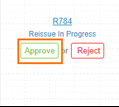
- In the Approvedialog box, enter your Comments.
- Click Yes.
- If the workflow request has to be approved automatically in the future, click Schedule later.
- Click Implement.
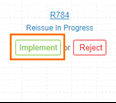
- In the Implement dialog box, enter your Comments.
- Click Yes.
-
If the workflow request has to be approved automatically in the future, click
Schedule later.
After the certificate is reissued, the the status updates to Completed.

Reissue Cert with GlobalSign Atlas CA
Reissue or Rekey allows you to issue a new certificate using the parameters of an existing certificate. This is useful when multiple copies of a certificate with different private keys are required; for example, when operating a load balancer service where all the servers need the same certificate but have different private keys. The newly issued certificate will have the same not_after date as the original. Use the certificate serial number in the {certificates} object and send a new public key or CSR (depending on your validation policy) with your request. No other field modifications will be allowed. The new certificate will have identical fields to the existing certificate.
GlobalSignAtlas ReKey feature doesn't take the new SAN fields from the ReIssue payload. Only the HashAlgorithm and BitLength can be modified during the reissue operation. Other details will be derived from the parent certificate.
Reissue or Rekey a Certificate POST /certificates/{certificate}/rekey Reissue an active certificate by making a POST request to the /certificates/{certificate}/rekey endpoint.
To reissue an existing certificate:
-
From the CERT+ main menu, under CERTIFICATE INVENTORY, select
Server.
The Server Certificate page is displayed.
-
From the list of certificates, select the Common name of one of the
valid certificates.
The certificate topology view of the selected certificate is displayed.
-
From the three-dot menu, select Reissue.
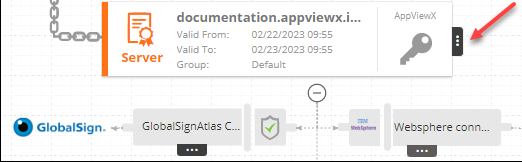
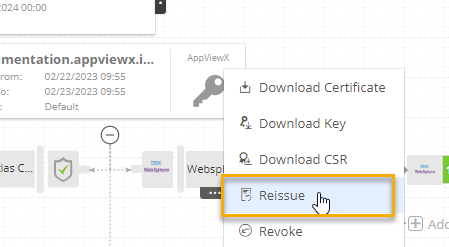 The Server Certificate > Reissue page is displayed.
 -
Enter/Select the modified values in the CSR Parameters
section.
Note: For reissuing certificates, all the other sections on this page are read-only.
Table 1. Field descriptions for the CSR Parameters Field Description Replace PSE File The Replace PSE File checkbox enables users to generate the CSR or private key in the Server. This checkbox is displayed only in the case described below: -
Select the CSR Generation radio button as Endpoint.
-
Select Category as Server, Vendor as ABAP or Web Dispatcher The Profiles dropdown is the only other field displayed below it and is populated with a list of .pse file names.
-
Select the required Profile from the dropdown. Based on the values selected, the fields in the CSR Parameters section are auto-populated.
The Replace PSE File checkbox is disabled by default and the SAN details fields in CSR Parameters section are also disabled. Selecting the checkbox will make the SAN details enabled and allow for values to be updated.
*Common Name Enter the certificate's common name. The common name is one of the key values of Certificate Signing Request (CSR) to be present in the certificate. For example, <appviewx>.
Note: No special characters allowed except en dash (_) and hyphen (-).Subject Alternative Name Enter/From the dropdown list, select the Subject Alternative Name for the certificate being enrolled. You can see the count of subject alternative names (SAN) available for a certificate in the CSR parameter section, inventory grid, and CA connector page.
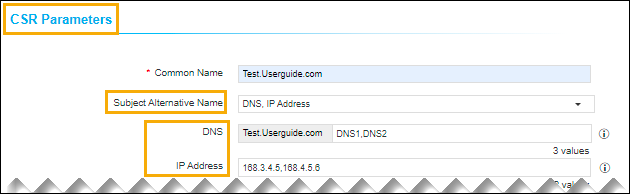 Note:
Note:- Multiple values must be separated by a comma.
-
The cumulative count SANs is displayed in the certificate property pop-up window from the holistic view.
*Organization The organization name is one of the CSR parameters to be present in the certificate. This field will be auto-filled and editable based on the configuration in the selected group’s policy. Organization Unit Organization Unit name is one of the CSR parameters to be present in the certificate. This field will be auto-filled and editable based on the configuration in the selected group’s policy. Locality The locality name is one of the CSR parameters to be present in the certificate. This field will be auto-filled and editable based on the configuration in the selected group’s policy.
State The state name is one of the CSR parameters to be present in the certificate. This field will be auto-filled and editable based on the configuration in the selected group’s policy. Country Country name is one of the CSR parameters to be present in the certificate. This field will be auto-filled and editable based on configuration. It must be a 2-letter country code (for example, US, and so on). Email Address Enter a valid email address of the person responsible for maintaining the certificate. *Validity To specify the validity of the certificate being enrolled: - From the first dropdown list, select the number of days/months/years.
- From the second dropdown list, select the unit
of the duration from the following values:
Days/Months/Year.For example, if the validity of the certificate is 2 months:
- From the first dropdown list, select 2.
- From the second dropdown list, select Months.
Challenge Password Challenge password is one of the CSR parameters to be present in the certificate. Password must contain at least one alphabet (uppercase and lowercase), one number, and one special character. Confirm Password Reenter the password entered in the Challenge Password field. *Hash Function The Hash function with which the CSR has to be signed. Any information specific to any CA or vendor has to be covered in the Note section. This field will be auto-filled and editable based on the configuration in the selected group’s policy. *Key Type The key type is used while creating a private and public key pair. This field will be auto-filled and editable based on the configuration in the selected group’s policy. *Bit Length The bit length is used while creating a private and public key pair. This field will be auto-filled and editable based on the configuration in the selected group’s policy. -
-
Click Reissue.
The Reissue dialog box is displayed.
-
Enter a valid reason for certificate reissue and click
Yes.
If it is auto-approved, then the reissued certificate is displayed.Note: For manual approvals, initiate the Approve and Implement pocesses from the certificate topology view. For instructions, refer steps 13-18 here.Note: To refresh the certifcate topology view, from the top-right corner of the screen, click Refresh.

-
From the CERT+ main menu, under CERTIFICATE ACTION, select
Reissue Certificate >
Server
The Server Certificate page is displayed.On the Server Certificate page, a new certificate with the same common name is displayed in the certificate inventory.