What is Windows Auto-Enrollment Proxy?
Windows Auto-Enrollment Proxy (WAEP) is a component developed by AppViewX that helps users/devices connected to the Microsoft domain to enroll or migrate from their existing certificates automatically to AppViewX PKIaaS.
Salient Features
- Use the Lift & Shift feature to migrate Microsoft Windows-issued certificates easily to Cloud.
- Control the number of duplicate certificates issued.
- View the WAEP dashboard for the enrollment status of all certificates.
How WAEP works
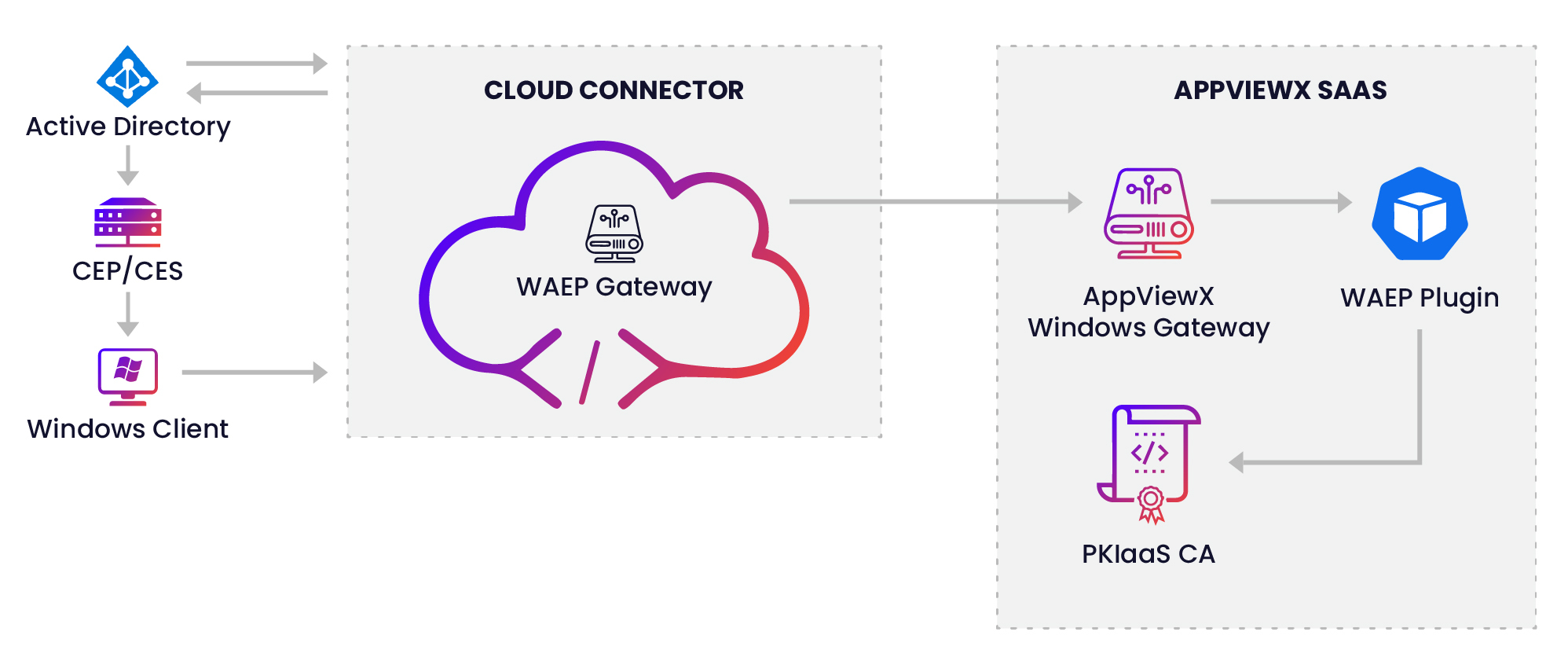
- The Certificate Enrollment Policy (CEP) server publishes the certificate template information, the CA information, and the enrollment link to all Windows clients and users.
- The Windows client sends the request directly to the Cloud Connector (CC) via Certificate Enrollment Web Service (CES) for enrolling a certificate.
- The CC queries for the agent settings along with other details such as AD configuration and global catalog server configuration. With the CC IP address and the port making a unique combination, there will be only one agent settings based on this combination of business keys.
- The WAEP module then fires an LDAP query using the agent settings fetched. It fetches the details from the global catalog servers and constructs the request.
- The CC then forwards the CSR payload to the PKIaaS for issuing a signed certificate.
- The signed response is then routed back to the client through the CC.
Prerequisites
- Establish trust for all entities in the environment.
- Trust anchor certificates to be published to all domain members from
group policy -OR- you can run the following commands from AD:
- For issuing CA:
certutil –dspublish –f <PathToCertFile.cer> SubCA - For root
CA:
certutil –dspublish –f <PathToCertFile.cer> RootCA
- For issuing CA:
- Trust anchor certificates to be published to all domain members from
group policy -OR- you can run the following commands from AD:
- Set up TLS connection in the AppViewX CC server.
- Enable the ACME service during the setup of CC for WAEP to function.
- The AppViewX CC server must be configured with certificate TLS to handle connection between Windows clients and the CC server.
- The AppViewX CC server must be made available to use the Lift &
Shift feature for SaaS deployments.
The CC ships with a self-signed certificate but ensure to replace the default self-signed certificate with a signed certificate. You can choose to have the signed certificate from a trusted third-party CA depending on your organizational policies.
- Ensure there is Internet access or provision to download the PKI CRL.
- Create a service account: A domain service account that belongs to the Cert Publishers group and with access delegated for the policy server and the AD server. The service account must be a part of the local admin group in CEP/CES server. See Create Service Account.
- For the Lift & Shift feature to work, enable the WinRM service on the policy
server (CEP/CES) and the AD servers configured in WAEP for global fetch
configuration and publication of templates.
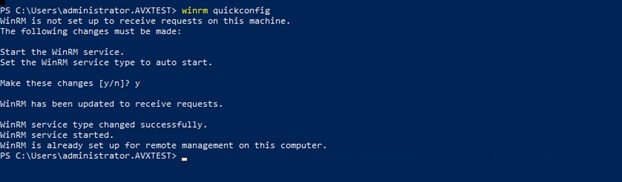
To configure WinRM service (Applicable only for automatic upload of templates):
- Run winrm quickconfig on the PowerShell window as an administrator.
- Type y when prompted to start the WinRM service.
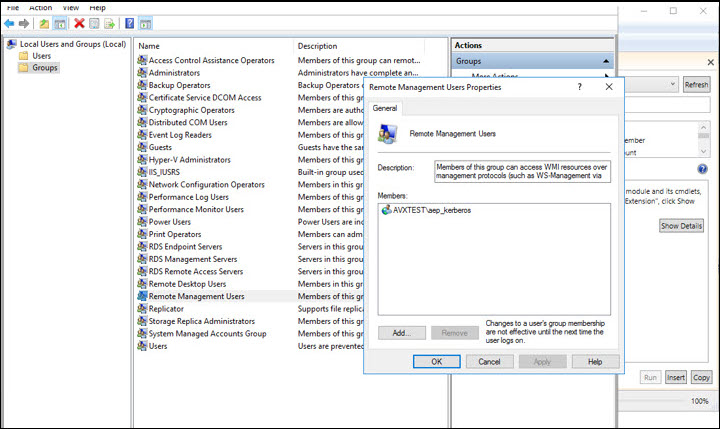
The service account, for example: <waep_kerberos>, must be part of the Remote Management Users group.
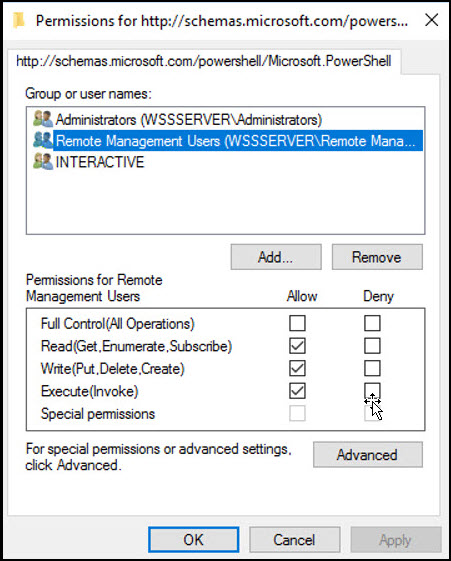
- To validate if the Remote Management Users group has permissions
to execute the scripts, run the below command on the AD server and the
policy
server:
PS C:\Users\administrator.AVXTEST> Set-PSSessionConfiguration -ShowSecurityDescriptorUI -Name Microsoft.PowerShell - Add the service account (aep_kerberos) to the Remote Management Users
group.
- Assign Read,Write, and Execute permissions to the group.
- Enable Credential Security Support Provider (CredSSP) authentication on
the policy server (CEP/CES) and the AD servers by running the following
command:
Enable-WSManCredSSP -Role Server - Once the server role is enabled, ensure the parameters, Kerberos,
Negotiate, CredSSP, are set to true and
CbtHardingLevel is set to Relaxed as shown.

-
Repeat the process to enable CredSSP authentication on the client side by running the following command:
PS C:\Users\Administrator> Enable-WSManCredSSP -Role ClientNote:- Ensure that the parameters, Kerberos, Negotiate, CredSSP, are set to true and CbtHardingLevel is set to Relaxed.
- If Kerberos is not set to true, then run the
following
command:
winrm set winrm/config/Service/auth '@{Kerberos="true"}' - If CredSSP is not set to true, then run the following
command:
winrm set winrm/config/Service/auth '@{CredSSP="true"}'
- Add the policy server to the trusted hosts list by running the following
command:
winrm s winrm/config/client '@{TrustedHosts="CSSSERVER"}'Note: Here CSSSERVER is the hostname for policy server. Repeat the step for the AD server. - Allow credential delegation via the group policy editor.
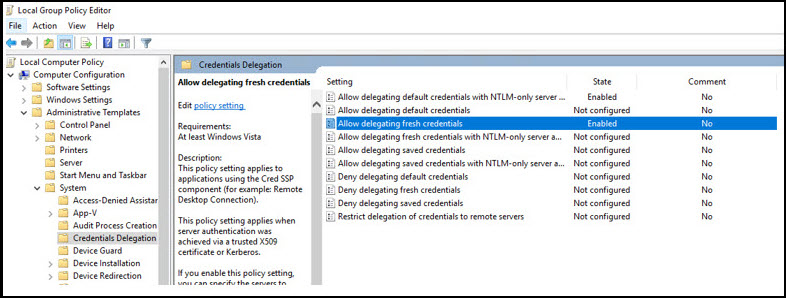
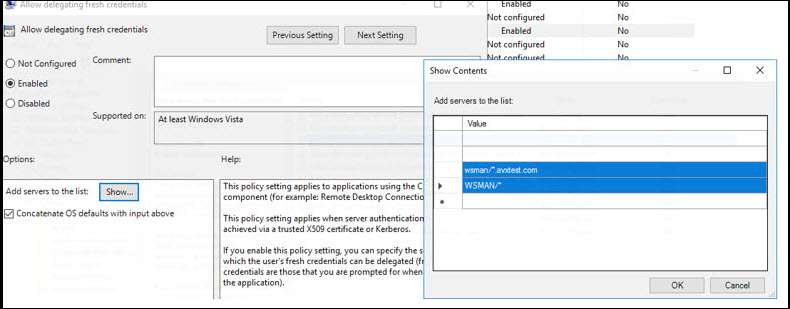 Note: Replace *.avxtest.com with your domain name.
Repeat the same procedure for the remote server, which would be the policy server.
- Ensure that delegation is provided to the AD server that will be used
for the connection.
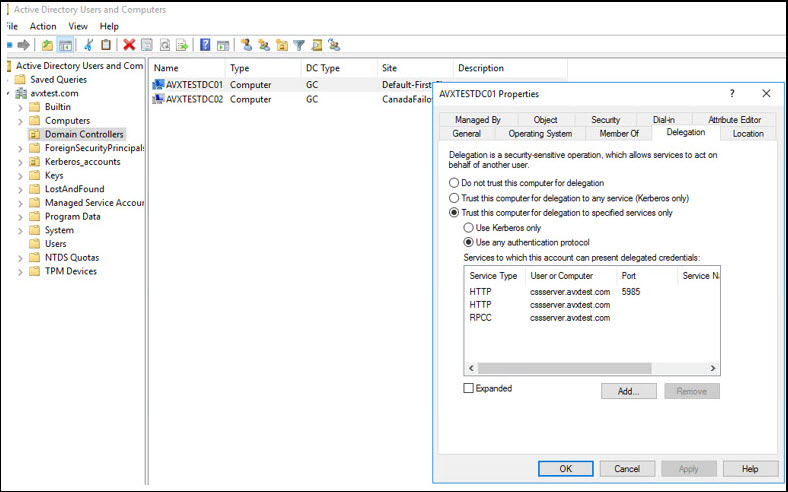 Similarly allow delegation for the policy server as shown:
.png) Note: For more information, refer to https://learn.microsoft.com/en-us/powershell/module/microsoft.powershell.core/about/about_remote_troubleshooting?view=powershell-7.3
Note: For more information, refer to https://learn.microsoft.com/en-us/powershell/module/microsoft.powershell.core/about/about_remote_troubleshooting?view=powershell-7.3
Server Requirements
| Server/Client | Requirements |
|---|---|
| Microsoft Active Directory Domain Services Server | Operating System:
Server Roles:
|
| Microsoft CEP/CES Server | Operating System:
Server Roles:
|
| WAEP Dependencies |
|
| Microsoft Windows Client | Operating System:
|
| Cloud Connector Specifications |
|