[Optional] Test Auto-Enrollment
Do the following steps on the Windows Client machine to ensure auto-enrollment policy
works:
- Add the Windows Client host member of the domain (yourcompany.com).
- Log in as user member of the Domain Admins group.
- Type
mmc.exein the Run command to open the Microsoft Management Console. - Click File > Add/Remove Snap-in and select certificates for both
user and local computer.
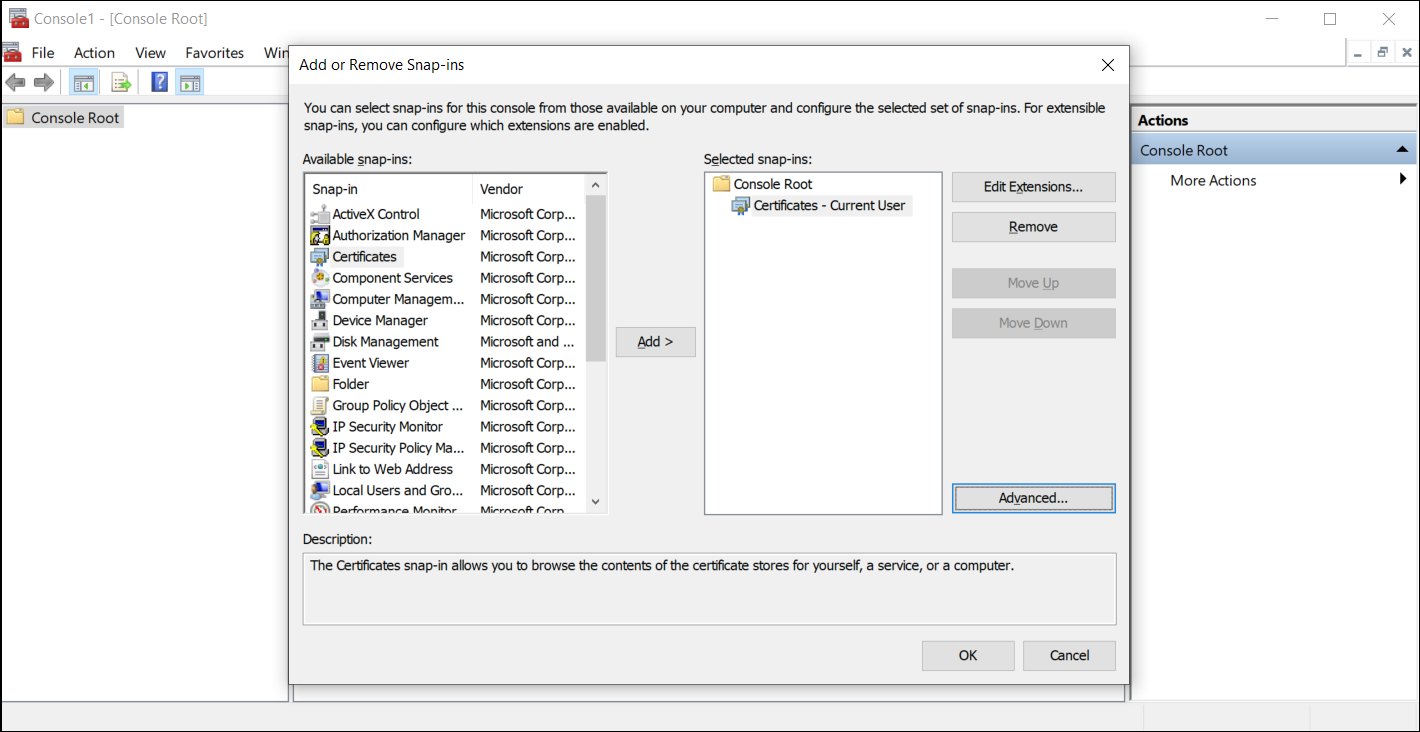
- Verify that the user certificate was generated (Current User/ Personal/
Certificates).
Make sure that the user certificate in the personal store is generated by the Windows CA using your duplicated template.
- Verify that the computer certificate was generated. (Local Computer/ Personal/
Certificates requires Admin privileges to check the local computer certificate
store.)
Make sure that the computer certificate in the personal store is generated by the Windows CA using your duplicated template.