AppViewX
To configure credential details for the AppViewX vault:
- Go to Platform > VAULT & SECURITY > PAM.
- The PAM page is displayed with a list of devices/objects/applications with Privileged Access Management.
- On the + Add credential page, select AppViewX from the left menu.
-
In the Credential details section, enter the required field
information.
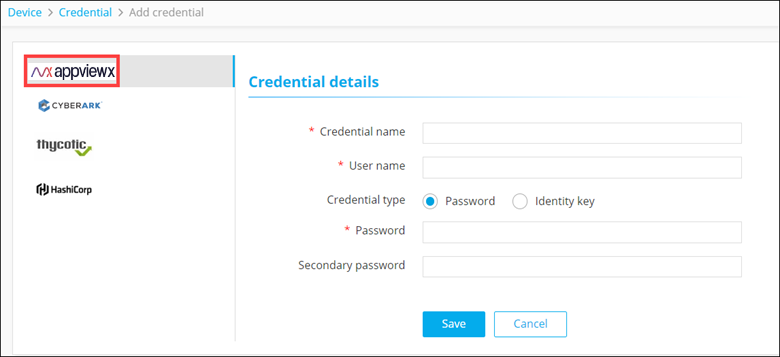
Table 1. Field descriptions for Credential details Field Description *Credential name Name for the credential for the users to identify it. *User name User name used for device onboarding. Credential type Select the type of authentication from one of the following: - Password
- Identity key.
*Password Password configured at the time of device onboarding.Note: This field is displayed only when the Credential type is selected as Password.Secondary password Additional password enabled by vendors for specific operations. Note: This field is displayed only when the Credential type is selected as Password.*Identity key Credentials (upload private key in the .pem or .txt or .rsa or .ppk format only) for enabling device communication via SSH. Note: This field is displayed only when the Credential type is selected as Identity key.Passphrase Key to protect the private key files. Note: This field is displayed only when the Credential type is selected as Identity key.*: Mandatory fields - Click Save.