BeyondTrust
Prerequisites for Integrating BeyondTrust with AppViewX
For links to the corresponding BeyondTrust vault documentation, see to the References section.
Configuring Credential Details for the BeyondTrust Vault
- Go to Platform > VAULT & SECURITY > PAM.
- The PAM page is displayed with a list of devices/objects/applications with Privileged Access Management.
- On the + Add credential page, select BeyondTrust from the left menu.
-
In the Credential details section, enter the required field
information.
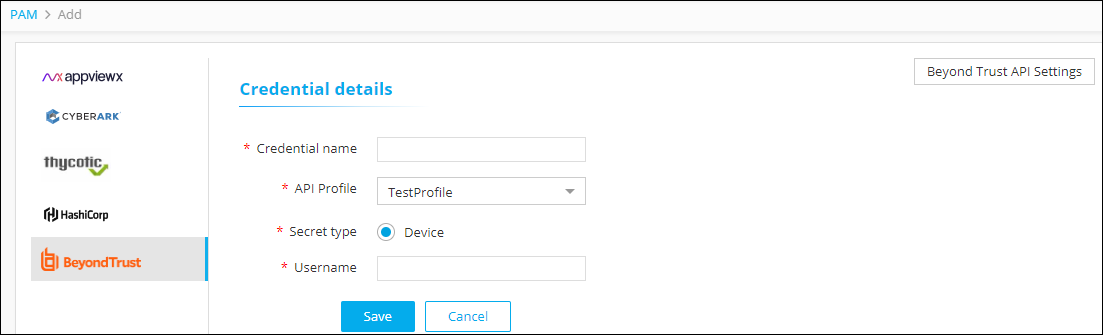
Table 1. Field descriptions for Credential details Field Description *Credential name Reference name for BeyondTrust in AppViewX. *API Profile If you have more than one BeyondTrust Server added as profiles, select the respective profile while adding credentials. *Secret Type Select the secret type as Device. Only secrets associated with any device can be added with this secret type. Secret should contain the device name. *Username Enter the username of the secret if you selected the Secret Type as Device. When this secret is used in any device, respective device name will be automatically send as one of the argument when AppViewX fetches credential from Vault. *: Mandatory fields - Click Save.
Steps for Integration
- On the Add credential page, select BeyondTrust from the left menu.
-
From the top right corner of the page, click BeyondTrust API
Settings.
The BeyondTrust API Settings pop-up window is displayed.
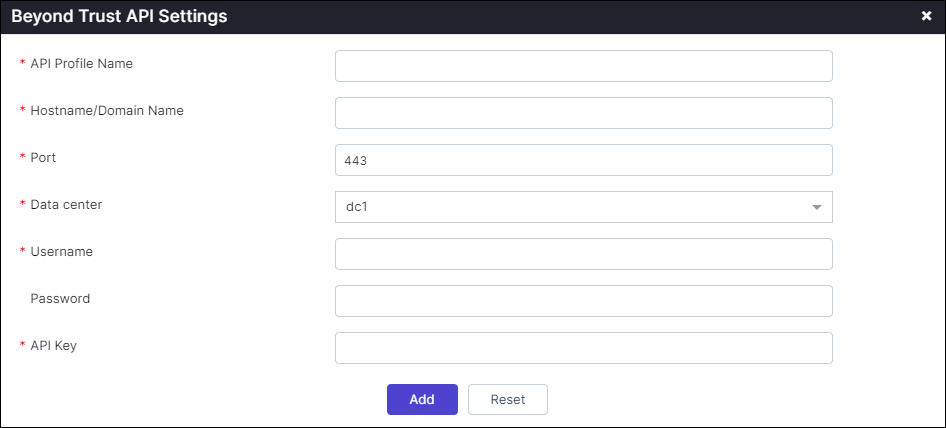
Table 2. Field descriptions for BeyondTrust API Settings Field Description *API Profile Name Reference name for the vault in AppViewX. *Hostname/Domain Name Enter the Hostname of the BeyondTrust Secret Server if it is hosted in an on-prem environment or the Domain name of the BeyondTrust Secret Server if it is the cloud version. *Port Port number of the BeyondTrust Secret Server. *Data center Select the appropriate data center where the BeyondTrust components are located or managed. *Username Username of BeyondTrust Secret Server. Password Password of BeyondTrust Secret Server. *API Key It is the security key provided for authentication. *: Mandatory fields Note: You can add multiple BeyondTrust Secret Servers as different Profiles. Each BeyondTrust Secret Server will be added to the BeyondTrust API settings page. - Once the details are entered, click Add.
- To modify the details of any profile, click on the name of the profile, modify the details and click Modify.
-
To delete any profile, click
 (Delete) icon in the Action column of the profiles.