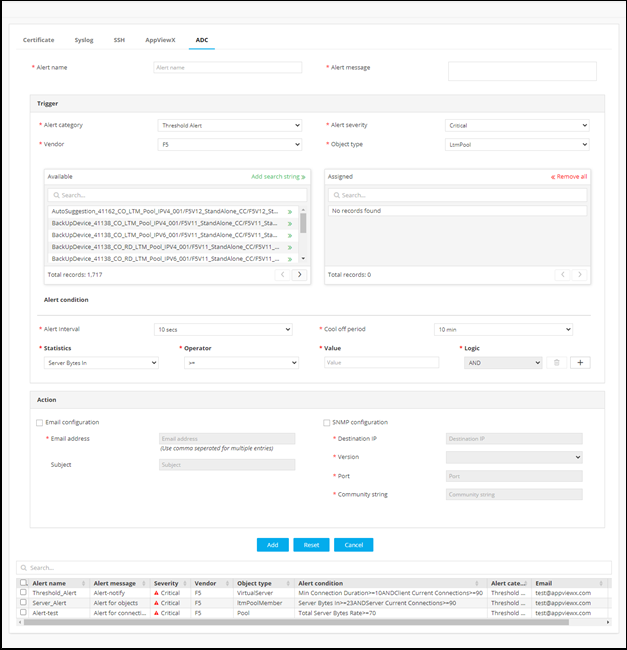
Configuring Threshold Alert Notification
AppViewX allows near real-time monitoring of Critical Applications/Devices that breaches statistical thresholds like CPU, Memory, Number of requests, etc. Customize the threshold limits as per your organization, monitor Apps on real-time, and get notified via Email or SNMP.
To configure a Threshold alert notification,
- Go to Menu > ADC+ > ALERTS & LOGS > Alerts.
-
Click
 (Settings) icon, and then ADC.
- Enter an Alert Name, Message, and Category as Threshold.
- Configure the critical Devices/Applications that need to be monitored.
- Set an Alert monitoring interval from 10 secs to 60 secs that fetches the run time data from the device to validate against the threshold.
- Set a Cool off period like 10, 20, or 30 mins. The cool-off period prevents the user from getting bombarded with notification alerts for the same event.
- Configure the Statistics that need to be monitored and set a value ie >=,<=,<,>,==.
-
Create an Alert with multiple conditions with Logic AND and OR by clicking
 .
.
- Define a Severity for your event based on the threshold conditions (Critical, Fatal, Major or Minor).
- Configure the notification type as Email or SNMP.
- Configure multiple Alerts as needed and Add them to the Grid. The configured Alerts could be modified or deleted anytime by selecting the Alert from the grid.
- Following are some of the alerts that can be configured:
-
A Virtual server’s Current connection exceeded 100
-
A critical Device’s CPU breaches 60
-
A server’s Number of Requests is lesser than expected.
-
-
The configured events will be notified to the end user via Email or SNMP and as well
captured in the Alerts inventory for tracking.