Device Inventory
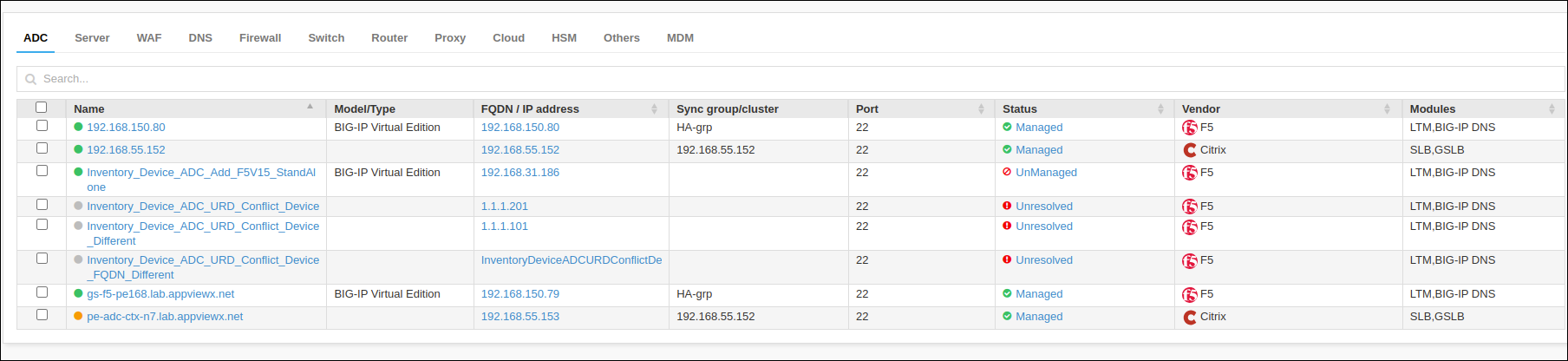
| Column Name | Description |
|---|---|
| Checkbox | Allows selection of individual devices for actions. |
| Name | The unique name assigned to each device. |
| Model/Type | The specific model or type designation of the device. Supported only for F5 vendor. |
| FQDN/IP Address | The FQDN or IP address of the device. |
| Sync groupcluster | Indicates the synchronization group or cluster to which the device belongs. |
| Port | The port number used for communication with the device. |
| Vendor | The vendor of the device. |
| Modules | Lists any modules installed on the device. |
| Data center | Specifies the data center location where the device is hosted. |
| Object count | Total number of objects managed or monitored by the device. For F5 vendor support (LTM Module): For non-ADC customers, when parsing is skipped based on a database flag, the object counts will display a managed status. Even if there are issues with managing the device, its status will still appear as Managed. You can verify the details of any failures in the audit logs. |
| Version | Current software version running on the device. |
| Status | Current operational status of the device (e.g., Managed, Unmanaged). |
| Report | Access to reports related to device performance or issues. |
| Services | Lists the services provided by the device. |
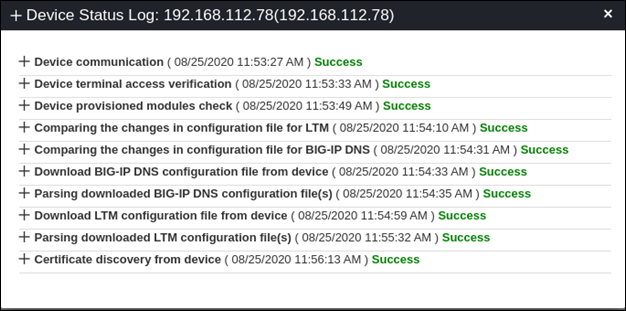
Once the ADC device details are onboarded, devices must successfully go through the following setup process to be Managed into AppViewX,
-
AppViewX tries to establish a connection with the device with the provided username and password. The communication protocol varies based on the ADC device providers.
-
If the connection gets established, the required access is validated. For example, If any F5 ADC device gets added, Terminal access verification happens from AppViewX.
-
The requested module is validated in the ADC Device. For example, if an ADC device is added as GSLB, then the appropriate provision is validated.
-
The version of ADC device is fetched and validated for the supported version.
-
The configuration is fetched from the device through REST or any other supported protocol by the ADC device provider. The configurations are made available in AppViewX.
-
If the certificate discovery is enabled, then appropriate certificates from the ADC device are discovered.
-
If secondary device detection is enabled, then failover/standby device information is fetched.