Enabling a Workflow
- Go to the Workflow page.
- On the Workflow page (Card view), select the workflow to be enabled.
-
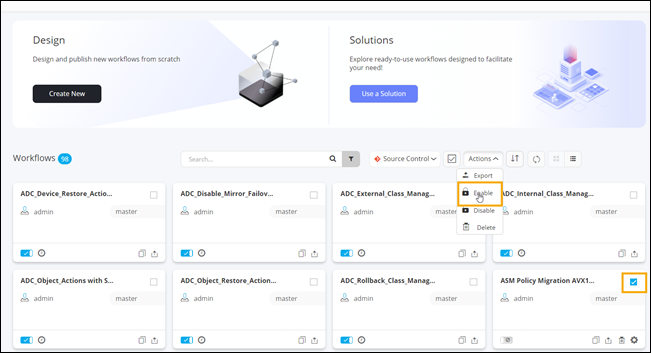
To enable the selected workflow, from the Actions
dropdown menu, select Enable.
-
Click Yes in the Confirmation
pop-up window.
The workflow is enabled.Tip: You can also enable the workflow by turning on the toggle on the selected workflow card.
-
To enable multiple workflows, you can either individually select the workflows
to be enabled or click
 (Selection) icon to select all workflows displayed on the page and click
Enable in the Actions dropdown menu.
(Selection) icon to select all workflows displayed on the page and click
Enable in the Actions dropdown menu.
-
To enable a workflow, when the Workflow page is in List view,
select the workflow(s) to be enabled and click
 (Enable) icon.