Configuring UltraDNS
-
Go to DDI+ > INTEGRATION HUB, and
then click Add new vendor.
The Select vendor page is displayed.
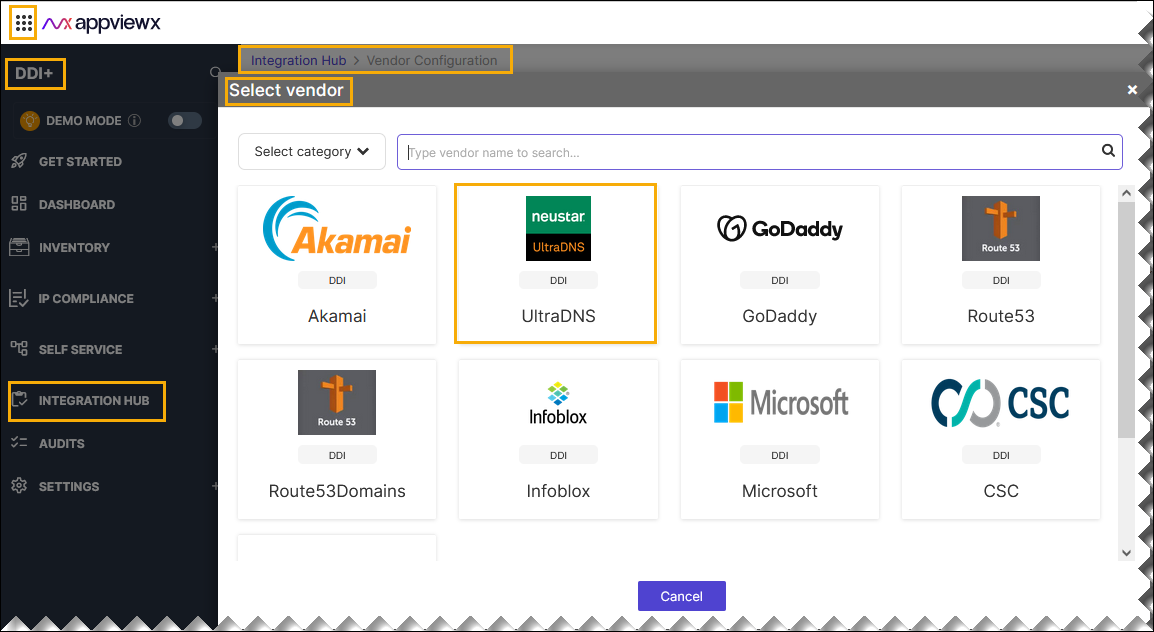
- On the Select Vendor page, click UltraDNS.
-
On the Vendor Configuration page, under the
Information section, enter or select the required
field information.
The following table describes the various fields in this section:
Field Description *Name Enter a unique name to identify the vendor account which is being configured. Description Enter a description for the purpose of configuring this vendor, if required. Data center Select a data center from the options available in the dropdown list. *: Mandatory fields -
On the Vendor Configuration page, under the Credentials section,
enter or select the required field information.
The following table describes the various fields in this section:
Field Description Auth type Displays the OAuth 2.0 method of authentication selected by default. *URL Enter API URL for the vendor with the HTTPS/HTTP protocol. *Username Enter the valid username *Access Token URL Enter the authentication URL to obtain an access token to authenticate UltraDNS APIs. *Client ID Enter the unique Client ID provided by UltraDNS. *URL Enter API URL for the vendor with the HTTPS/HTTP protocol. *Password Enter the valid password. *Account Name Enter the UltraDNS account name for API integration. *Client Secret Enter the client secret given provided by UltraDNS. *: Mandatory fields - Enable Config sync for parsing the vendor
- On the Vendor Configuration page, under the Configurations section, turn on the Enable Config toggle to add additional vendor configuration attributes.
- Click Finish.