Demo Mode
Demo Mode is a state in which the DDI+ system operates to showcase its capabilities and features in a controlled environment. In Demo Mode, you can explore all DDI+ features with sample data, but you will not be able to perform any actions.
The Demo Mode feature option can be found within the left navigation panel. You have the flexibility to enable or disable this feature according to your requirements. Availability of other DDI+ features in Demo Mode might vary depending on the permissions set by the Access Control Framework (ACF).
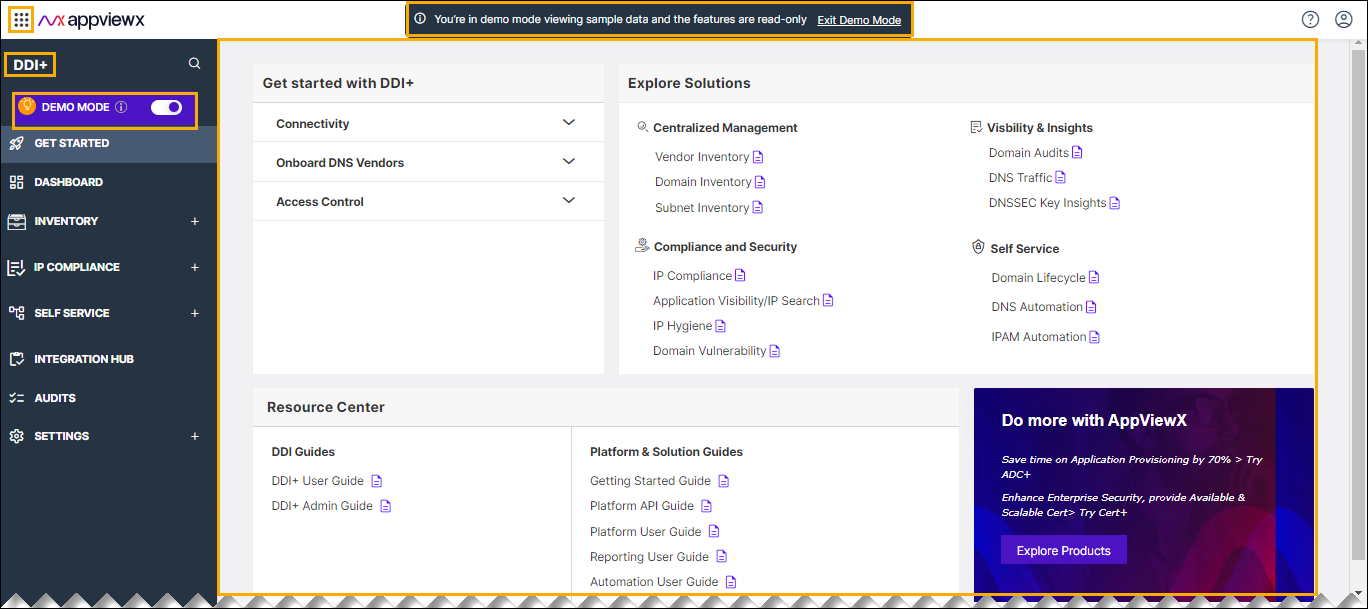
Enabling Demo Mode
- Go to Menu > DDI+.
- Click the Demo Mode toggle button.
The Demo Mode option in the left navigation panel is highlighted and a notification message displayed on the banner, indicating that the Demo Mode has been enabled.
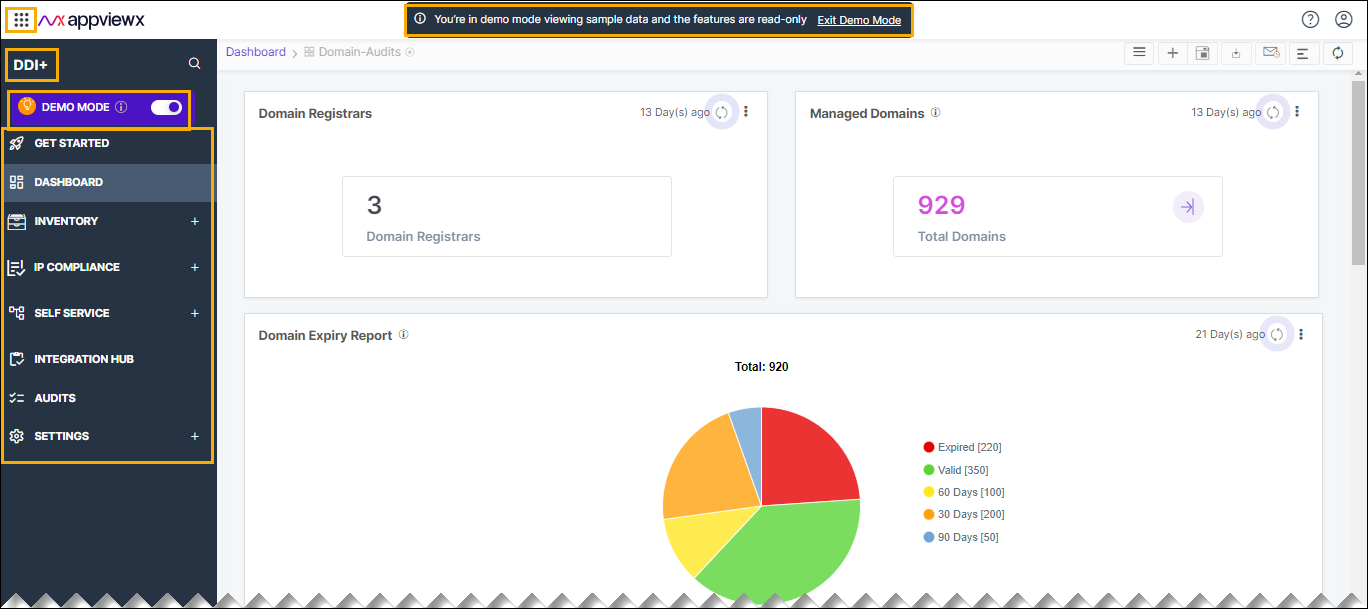
Understanding Features in Demo Mode
- GET STARTED
- DASBOARD
- INVENTORY
- IP COMPLIANCE
- SELF SERVICE
- INTEGRATION HUB
- AUDITS
- SETTINGS.
-
Exiting Demo Mode
- Go to Menu > DDI+.
- Click the Demo Mode toggle button.
 The highlight
sign on the Demo Mode option in the left navigation panel disappears and the
notification message displayed on the banner also disappears.
The highlight
sign on the Demo Mode option in the left navigation panel disappears and the
notification message displayed on the banner also disappears.