Entrust MPKI CA
Prerequisites
Following are the prerequisites for configuring Entrust MPKI CA account in
AppViewX:
- An Entrust client authentication certificate and credentials having necessary access for CLM actions.
- AppViewX server should either have internet access or have a proxy configured in AppViewX general settings. Check Proxy Setup for the steps to configure the proxy.
Configuring Entrust MPKI
To configure the Entrust MPKI CA:
- Go to > > > .
- Click the +Add icon on the top right of the page.
- Select the Entrust in the left side vendor list, and then select the Entrust MPKI tab.
-
Update the following details in the General Information section as
described in the table:
Table 1. General Information - Field and Description Table Name Description *CA Account name A unique name to identify the CA setting.
Note: No special characters other than ‘.’, ‘-’,’_’ are allowed. Names should not start with special characters.*Purpose/Usage Certificate Type for which CLM actions will be enabled.
For example: Server and Client
Proxy Required Enable this field if the CA communication needs to happen via Proxy. The proxy details configured in general settings will be used for communication. Data Center (AppViewX's CA agent) Select the data center through which the CA communication needs to happen. *: Mandatory fields -
Update the following details in the CA Configuration section as
described in the table. These fields are necessary for invoking the Entrust
MPKI CA APIs for Certificate Management.
Table 2. CA Configuration - Field and Description Table Name Description *Client Authentication Client authentication certificate for API communication.
Note: Must be a valid <.p12> file.*Base URL This URL will contain just the hostname of the Entrust CA instance. For example, https://api.entrust.net/enterprise/v2 *: Mandatory fields -
Click Fetch CA
and
Profile Names.
The attributes available for the CA account will be fetched from the Certificate Authority along with the CA and profile names.Note: The pop-up message is displayed as CA and profiles fetched.
-
Click Save.
The created Entrust MPKI configuration settings will be added.Note: The pop-up message is displayed as <CA_name> Settings Added.
Validating Entrust MPKI Connection
Once the Entrust settings are added, validation needs to be done to check whether the connection between AppViewX and Entrust is properly configured.
To validate the Entrust MPKI connection,
- Go to > > >
- Select the Entrust MPKI in the left side vendor list.
-
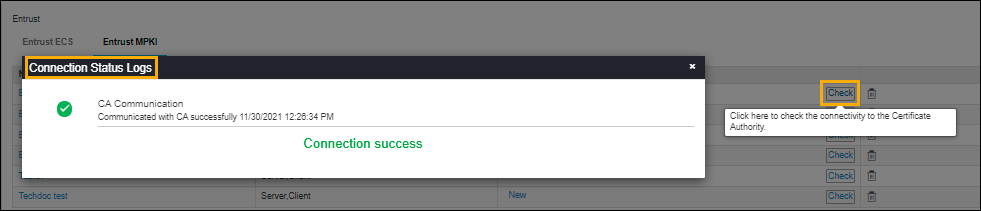
Click Check to validate the CA setting that has been
created.
The CA communication will be validated and the Connection Status will be shown as either Success or Failure.