Deleting Server Certificates
Note: Once a
certificate is deleted from the inventory, it will not be displayed in any reports
and alerts.
Deleting Individual Server Certificates from the Inventory
-
Go to Menu > KUBE+ > VISIBILITY >
Server > All.
The Server Certificate page is displayed.
- From the Server Certificate inventory, for the certificate(s) you want to delete, select the corresponding checkboxes.
- From the Actions dropdown menu, select Delete.
-
From the Delete Certificate confirmation dialog box,
click Yes.
The selected certificate(s) will be deleted.
Deleting Individual Certificates from the Holistic View
Note: Via the holistic view, you can delete only one
certificate at a time.
-
Go to Menu > KUBE+ > VISIBILITY >
Server > All.
The Server Certificate page is displayed.
-
From the Server Certificate inventory, click the Common Name
of the certificate you want to delete.
The holistic view of the selected certificate is displayed.
-
Hover your mouse over the
 (More) icon and from the menu displayed, click Delete
Certificate.
(More) icon and from the menu displayed, click Delete
Certificate.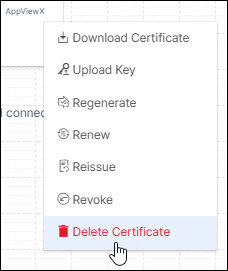
-
In the Confirmation dialog box that is displayed, click
Yes.
The server certificate is deleted from the AppViewX inventory.
Deleting all Server Certificates
-
Go to Menu > KUBE+ > VISIBILITY >
Server > All.
The Server Certificate page is displayed.
-
In the Server Certificate inventory, select the checkbox next to the
Common Name field label.
 All certificates on the current page are selected.
 -
To select all certificates in the server certificate inventory, click
Select all <no. of certificates>
certificates.
 This will select all certificates across all pages in the server certificate inventory.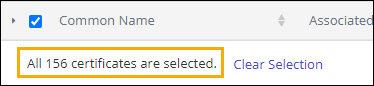
- From the Actions dropdown menu, select Delete.
-
From the Delete Certificate confirmation dialog box,
click Yes.
All certificates in the server certificate inventory are deleted.Note: The Select all <no. of certificates> certificates option does not allow deselecting individual certificates. If, after selecting all the certificates, you deselect a few certificates, only the remaining certificates on the current page will remain selected. The certificates on the other pages of the inventory will be deselected automatically.
Example: Assume you have 150 certificates in your inventory and each page is set to display 25 records. If you select all 150 certificates and then deselect two certificates from the first page, only the remaining 23 certificates on the first page will be selected. The other 125 certificates will be deselected.