Renewing a Server Certificate
If you are renewing a single certificate, you can trigger the renewal from the holistic view as they can verify all the details before initiating the renewal.
To renew a server certificate:
-
Go to Menu > KUBE+ > VISIBILITY >
Server > All.
The Server Certificate page is displayed.
- To open the holistic view of a certificate, under Common Name, select the required certificate name.
-
From the
 (More) menu for the certificate, click
Renew.
(More) menu for the certificate, click
Renew. 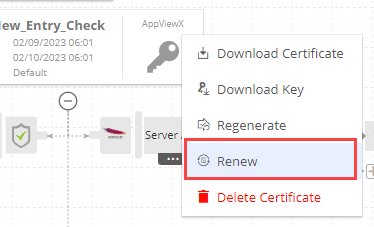 The Server Certificate > Renew page is displayed. The fields on this page are displayed depending on the type of certificate and the issuing certificate authority.
 -
On the Server Certificate > Renew page, update the renewal details if
and as required.
For field descriptions, you can refer to the instructions for enrolling a server certificate.Note: Starting version 2023.1.0 FP2, for certificates issued by Entrust and Microsoft, you can upload a new CSR in the CSR Generation field.
- If you are uploading a new CSR, ensure that the new and existing Common Name in the CSR Parameters are the same.
-
Click Renew.
The Renew dialog box is displayed.
-
Enter your comments in the text field and click Yes.
A request ID, which is the work order ID, is generated automatically, and work order status is displayed adjacent to the certificate in the holistic view. If the approval required option is enabled in the CA policy, the request is moved to the Approve and Implementation stages.
-
Click Approve to proceed.
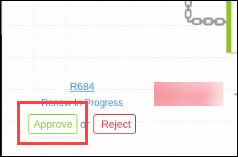 The Approve dialog box is displayed.
 -
Enter your comments in the text field.
Note: If the workflow request has to be approved automatically in the future, click the Schedule later button .
-
Click Yes.
Once the approval process is complete, the Implement option is displayed in the holistic view.
-
Click Implement.
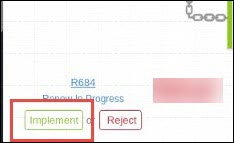 The Implement dialog box is displayed.
 -
Enter your comments in the text field.
If the workflow request has to be implemented automatically in the future, click Schedule later .
-
Click Yes.
The renewal process is triggered. After renewal is completed, the workflow status updates to Completed.