Configuring Tooltips 
To configure a tooltip:
- Design a workflow.
- Drag and drop the required workflow tasks.
- Assign the required values as global variables.
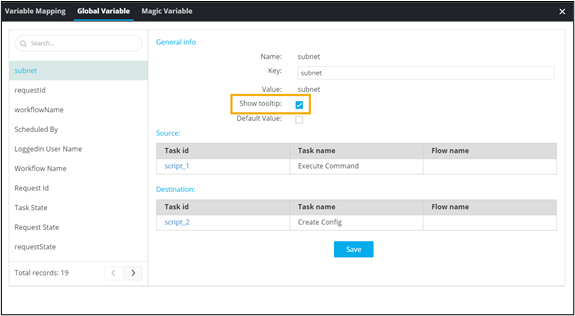
- To view all global variables, from the command bar on the top, click Variable Mapping.
-
Under Global Variable, select the Show tooltip checkbox.
- Connect the workflow tasks and enable the workflow.
-
Trigger the workflow.
Workflow is executed successfully.
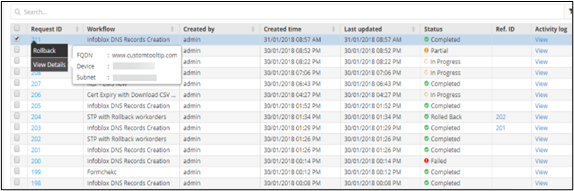
- On the Request :: All page, right-click on the Request ID of the workflow.
-
To see the tooltip information, click View Details.