Configuring Bluecat
-
Go to DDI+ > INTEGRATION HUB, and
then click Add new vendor.
The Select vendor page is displayed.
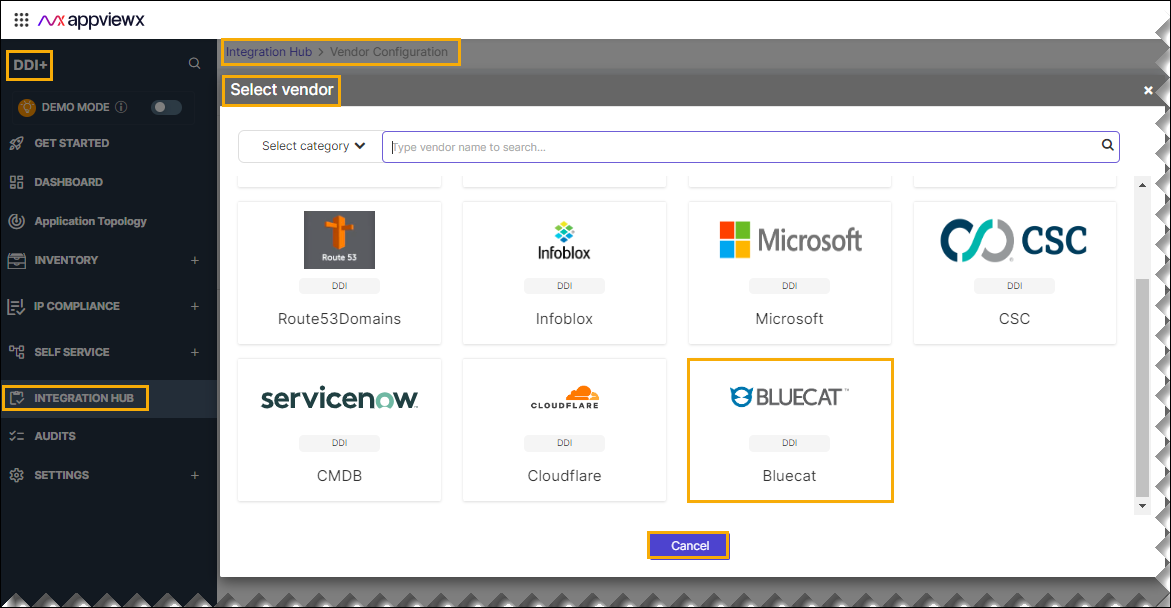
- On the Select Vendor page, click Bluecat.
-
On the Vendor Configuration page, under the
Information section, enter or select the required
field information.
The following table describes the various fields in this section:
Field Description *Name Enter a unique name to identify the vendor account which is being configured. Description Enter a description for the purpose of configuring this vendor, if required. Data center Select a data center from the options available in the dropdown list. *: Mandatory fields -
On the Vendor Configuration page, under the Credentials section,
enter or select the required field information.
The following table describes the various fields in this section:
Field Description Auth type Displays the Basic Auth method of authentication selected by default. *Username Enter valid username. *URL Enter API URL for the vendor with the HTTPS/HTTP protocol. *Password Enter the valid password. *Access Token URL Enter the authentication URL to obtain an access token to authenticate Bluecat APIs. For example, https://%3Ctest%3E.appviewx.net/Services/REST/v1/login *API Version Select the preferred API version from the dropdown list. By default v1 is selected. *: Mandatory fields - Enable Sync IPAM for parsing the IP Address Management (IPAM) data of the vendor.
- Enable Config sync for parsing the vendor.
- Enable Sync DNS for parsing the vendor.
-
On the Vendor Configuration page, under the Configurations
section, turn on the Enable Advanced Config toggle to add additional
vendor configuration attributes.
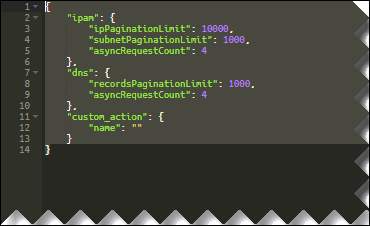 Sample Schema:
{ "ipam": { "ipPaginationLimit": 10000, "subnetPaginationLimit": 1000, "asyncRequestCount": 4 }, "dns": { "recordsPaginationLimit": 1000, "asyncRequestCount": 4 }, "custom_action": { "name": "" } }The following table explains the strings in the JSON schema:
Strings Description dns The DNS update Time to Live (TTL) value of a DHCP network object. recordPagination
Limit
CMDB Data Fetch Limit per Vendor API Call (For example, ServiceNow CMDB API Limit). Note: This API pagination limit specifies the number of CMDB records that can be retrieved in a single API call from ServiceNow.asyncRequest
Count
AppViewX initiates parallel calls to devices to synchronize data. The asyncRequestCount specifies the number of simultaneous calls AppViewX can make at any given time. ipPagination
Limit
Number of IPAddresses to be fetched in a single Infoblox ipv4 API call. subnet
Pagination
Limit
Number of Subnets to be fetched in a single Infoblox network API call. asyncRequest
Count
AppViewX initiates parallel calls to devices to synchronize data. The asyncRequestCount specifies the number of simultaneous calls AppViewX can make at any given time. custom
_action > name
Custom workflow name to be triggered after the Infoblox sync is complete *: Mandatory fields - Select CMDB Source from the dropdown list to correlate IPAM data with the CMDB.
- Click Finish.