Jump to main content
Certificate Settings
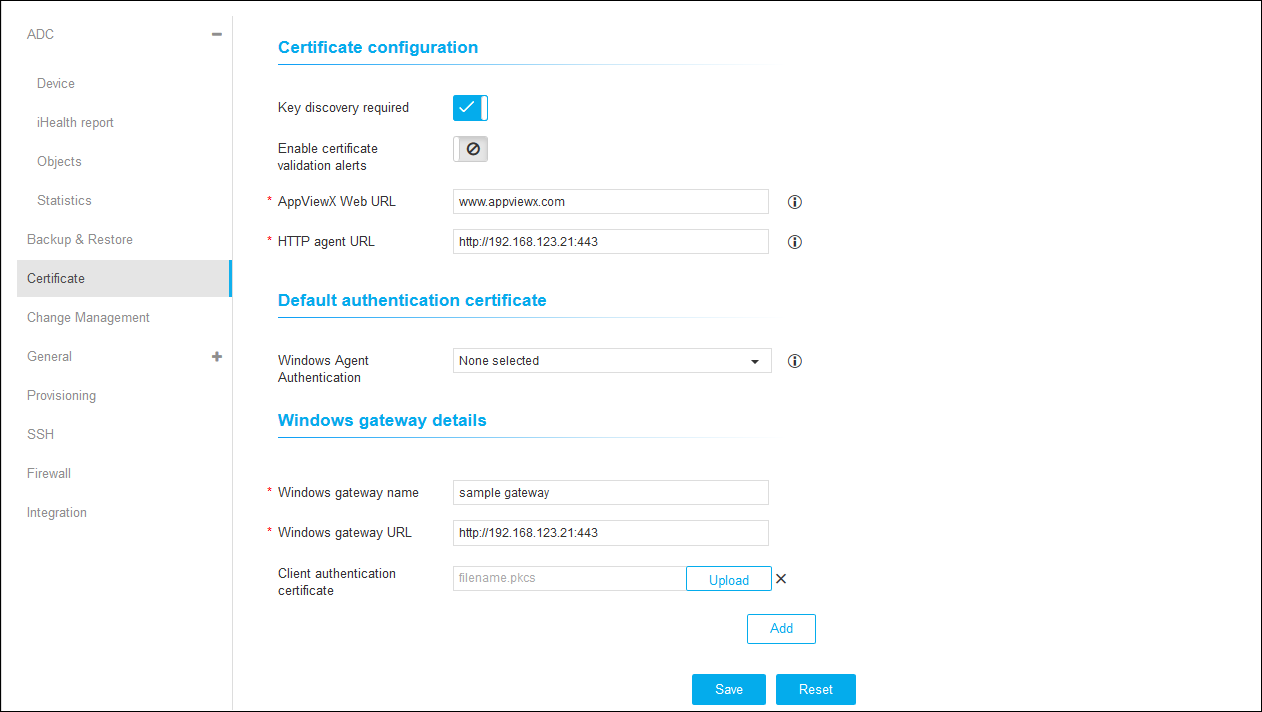
To configure certificate settings:-
Click
 and select
Settings > Certificate.
and select
Settings > Certificate.
-
Under Certificate Configuration, enable Key Discovery Required and
Enable Certificate Validation Alerts.
-
Enter the AppViewX Web URL and HTTP Agent URL.
-
Under Default Authentication Certificate, select Windows Agent
Authentication.
-
Under Windows Gateway Details, enter a Windows Gateway Name and Windows Gateway URL.
-
Click Upload in the Client Authentication Certificate field and choose a
file with .pkcs format.
-
Click Add to display the agent details.
-
Click Save to save the settings or click Reset to reset the
settings.