Import a Dashboard
To import a dashboard into AppViewX:
-
Click
 and select Dashboard.
-
Go to the top-level of the Dashboard module by clicking the Dashboard link in the
breadcrumb field or click
 in the Command bar.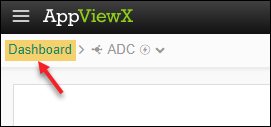
-
Click
 in the Command bar
at the top of the screen.
The Import screen appears.
in the Command bar
at the top of the screen.
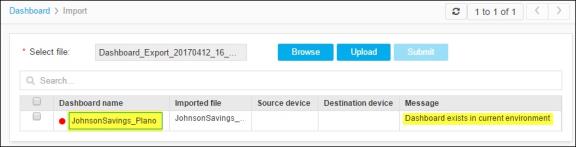
The Import screen appears. - Click the Browse button and then locate and select the zip file you are importing.
-
Click Upload.
The import function then checks to make sure the imported file and file name are valid.
-
After the zip file is successfully uploaded, select the checkbox in the column beside
the dashboard name.
Note: If the dashboard has the same name as an existing dashboard, use the Dashboard name field on the Import screen to enter a new name for the dashboard you are importing.
- Click Submit.
- On the Confirmation screen that appears, click Proceed.
-
Click the Dashboard link in the breadcrumb field to return to the top-level
Dashboard screen.
The new dashboard appears in the list.