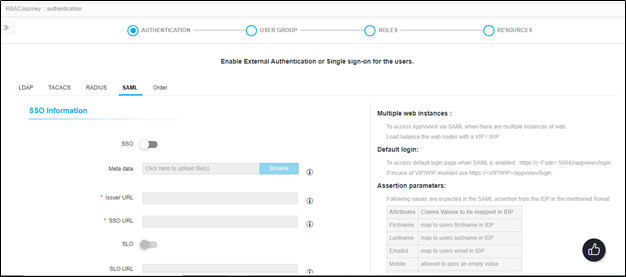
SAML
To configure the settings for SAML authentication:
-
Click Menu > Settings > General > Authentication >
Quick Config.
The Authentication screen opens with the LDAP sub-tab displayed by default.
- Click the SAML sub-tab.
- Click Disabled icon to enable the Single Sign-on (SSO).
- (Optional) Click Browse to locate and select the metadata file containing the SSO configuration.
- In the Issuer URL field, enter the entity ID of your Identity Provider (IdP).
- In the SSO URL field, enter the protected endpoint provided by your IdP, to which, AppViewX sends the authentication request.
- (Optional) Click the (Disabled) button to enable the Single Logout (SLO).
- In the SLO URL field, enter your IdP protocol endpoint.
- Click Browse to locate and select the required certificate.
- Click Save.
-
Click Copy (in the Entity ID, Service URL, and SLO URL fields) and paste
it in the respective field to configure the AppViewX details in your IdP
server.