TACACS
To configure the settings for TACACS authentication:
-
Click Menu > Settings > General > Authentication >
Quick Config.
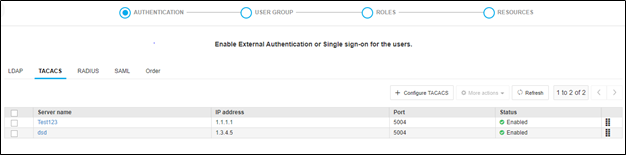
The Authentication screen opens with the LDAP sub-tab displayed by default.
- Click the TACACS sub-tab and click on Configure TACACS.
- Enter the name of the TACACS authentication server in the configuration popup appears.
- Enter the IP address for the TACACS authentication server.
- Enter the port for the TACACS authentication server.Click the Test connection button to ensure that the given host address is reachable and the port is valid for configuring TACACS.
- Enter the secret key text string that is shared between the TACACS server and AppViewX.
- Enter the kind of network service that will be used: for example, PPP.
- Enter the kind of protocol that will be used. In most cases, this is IP.
- Enter the role key, which is the return attribute from the TACACS server: for example, Role.
-
Click Add to save the TACACS configuration in the AppViewX system and
have it added to the list at the TACACS Inventory table.
Note: To delete an existing configuration in the TACACS inventory table, Select the required TACACS configuration using the Select checkbox beside the respective configuration. Click on More Actions and from the drop-down options and click the (Delete) button for the configuration.Note: To update an existing configuration in the TACACS inventory table, Click on the Server Name Hyperlink, Modify TACACS on the popup window and update the required details. Then click on Update.
- To disable a server configured, select the required TACACS configuration and click on More Options>> Disable option from the dropdown to disable a configuration that is currently in the enabled status.
- To enable a server configured, select the required TACACS configuration and click on More Options>> Enable option from the dropdown to enable a configuration that is currently in disabled status.
- (Optional) Repeat steps 2 through 10 to add more TACACS servers to the system.
-
(Optional) In the servers inventory table, click and hold a server name and
drag it up or down to change the order of TACACS servers in use in the system.
The order will be automatically saved.