Testing EST Enrollment by using CURL
- After the successful verification, create a test folder in the Linux client machine.
- Copy the <est_auth.crt> and <est_auth.key> from the common share directory https://drive.google.com/drive/folders/1K4G5L8yB5TOvvLCAPjNC3lQWBWtlWua0
-
Generate the CSR in the same folder with <openssl> command.
openssl req -new -newkey rsa:2048 -nodes -keyout rsakey.key -out req.p10 - Trigger GetCA certs request using CURL command (update server IP and Pathseg depends on Server Config).
-
Make sure that the authentication CERT and Key is present in same location
<curl -k --cert ./est_auth.crt --key ./est_auth.key
https://<server_ip>:30021/.well-known/est/cacerts -o cacert.p7.
You will receive <cacert.p7> file with Configured CA Certificate in Step
9.

-
Convert the received CA Certificate to pem
<openssl base64 -d -in
                        cacert.p7 | openssl pkcs7 -inform DER -outform PEM -print_certs -out
                        cacert.pem>
. -
Trigger enrollment request by using CURL and make sure that the authentication
Cert, Key, and CSR are present in same location.
<curl -k --cert ./est_auth.crt --key ./est_auth.key
                        https://192.168.205.29:30021/.well-known/est/simpleenroll -o
                        ./signed_cert.p7 --data-binary @req.p10 -H "Content-Type:
                        application/pkcs10" --dump-header ./resp.hdr>
-
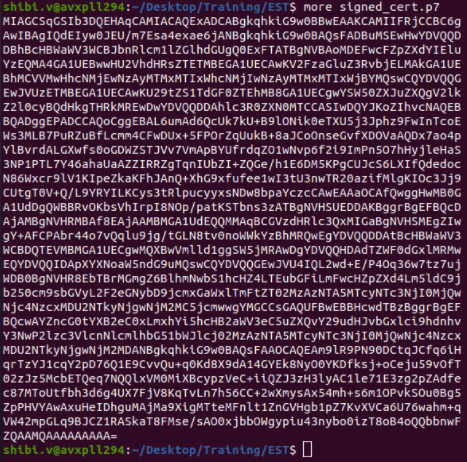
Verify the content of <signed_cert.p7>.
-
Convert the enrolled p7 Certificate in to pem:
<openssl base64 -d -in signed_cert.p7 | openssl pkcs7 -inform DER -outform PEM -print_certs -out signed_cert.pem>Note: Make sure that you have received <cacert.p7> file with Configured CA Certificate.