Clone a Rule
-
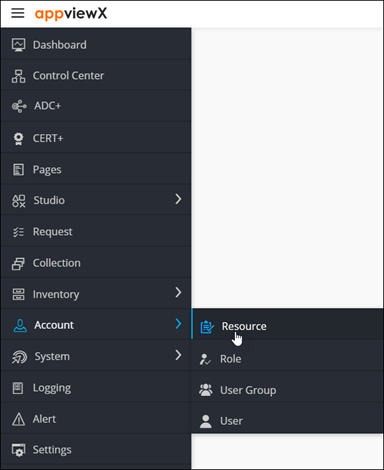
To access the navigation pane, in the top-left corner of the screen, hover the
mouse pointer over the
 icon.
icon.
-
From the menu displayed, click Account >
Resource.
The Resource page is displayed.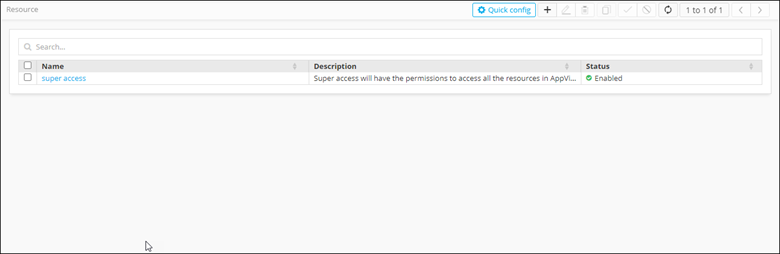
- From the top-right corner of the screen, click Quick Config. The RBAC Journey :: Authentication page is displayed.
-
Navigate to the Resources stage as part of the wizard flow to add roles
into AppViewX, with the Rules tab displayed by default.
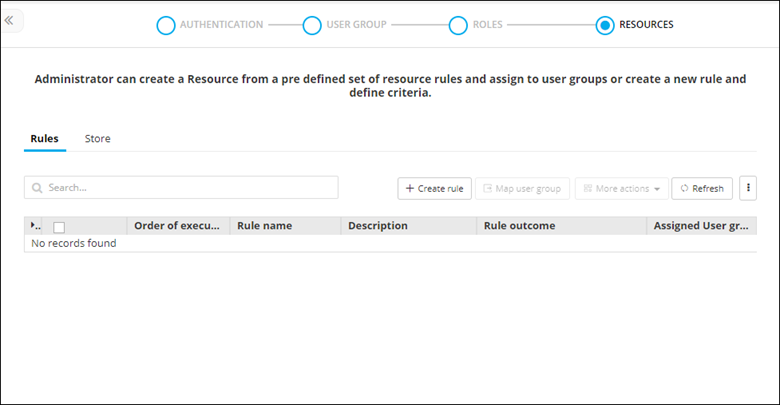
- For the resource you want to clone, select the check box against that resource.
- From the More actions drop-down menu, click Clone.
-
In the Clone rules dialog box, enter a name for the cloned rule and
click Save.
Rule details will be closed and will be opened in edit mode for any further modification on description/rule conditions.
- Once the rule is saved, enable the rule by clicking on the respective status icon for the rule to be actively running in the rules inventory table.