Configuring Privileged Access Management
To configure PAM settings:
-
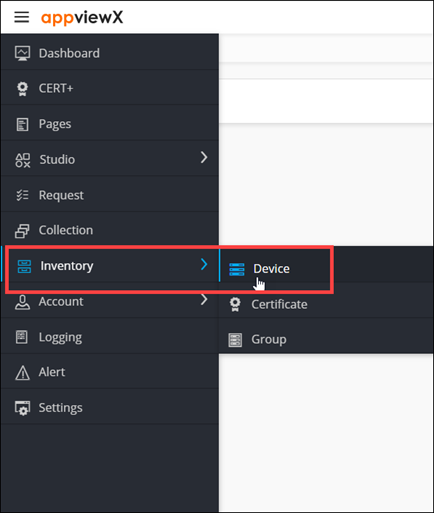
To access the navigation pane, in the top-left corner of the screen, hover the
mouse pointer over the
 icon.
icon.
-
From the menu displayed, click Inventory >
Device.
The Device :: ADC page is displayed.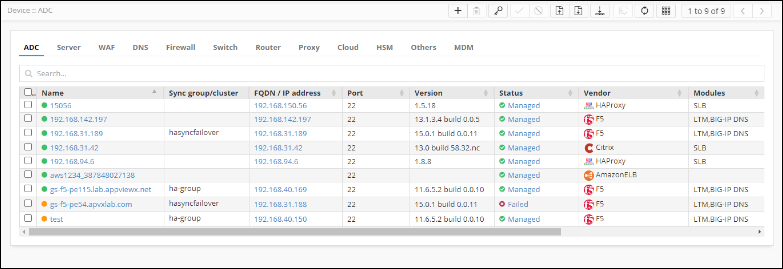
-
On the Device :: ADC page, click
Credential.

The Device > Credential page is displayed.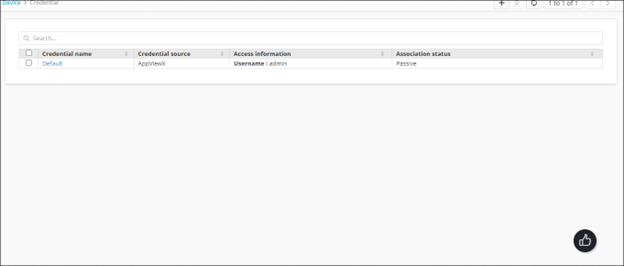
-
From the top right corner of this page, to add a credential, click
 .
The Add Credential page is displayed.
.
The Add Credential page is displayed.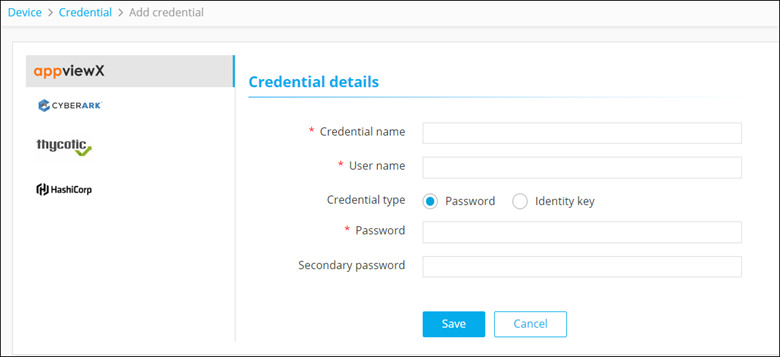
-
From the left pane, select the vendor for whom you want to configure PAM.
Credential details fields are displayed for the selected vendor.
- Enter the Credential details for the vendor.
- Click Save.