Cloning a User Group
-
To access the navigation pane, in the top-left corner of the screen, hover the
mouse pointer over the
 icon.
icon.
-
From the menu displayed, click Account > User
Group.
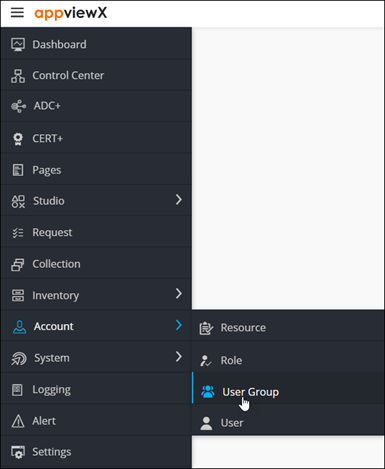
The UserGroup page is displayed.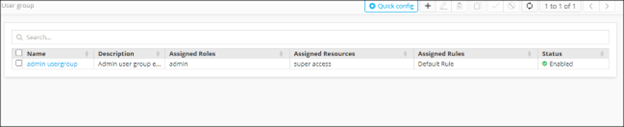
-
From the top-right corner of the screen, click Quick Config.
The RBAC Journey :: Authentication page is displayed.
-
Navigate to the User Group stage as part of the wizard flow to add user
groups into AppViewX.
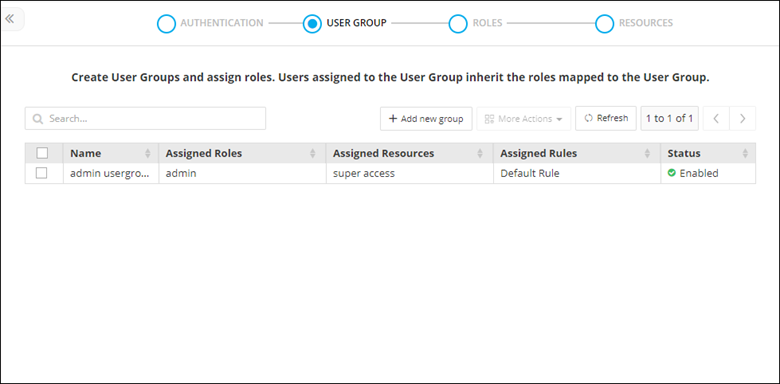
- From the inventory table, select the user group to be cloned.
-
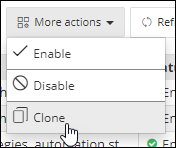
From the More Actions drop-down menu, select Clone.
- In the Clone dialog box, enter a name for the cloned user group and update the description, if required.
- Click Save.