Creating a User Group
-
To access the navigation pane, in the top-left corner of the screen, hover the
mouse pointer over the
 icon.
icon.
-
From the menu displayed, select Account >
User Group.
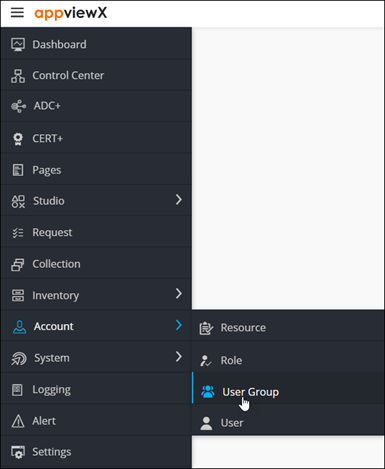
The User Group page is displayed.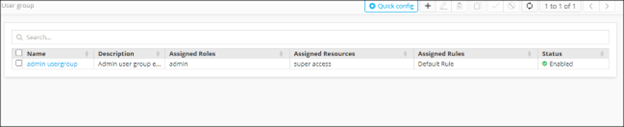
-
From the top right corner of the screen, click
 .
.
-
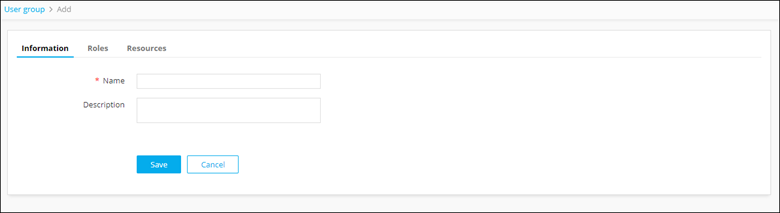
The Add page is displayed, with the
Information tab open by default.
-
Enter the following details:
Field Description *Name User group name. Description Brief description of the group (which makes it easy for the administrators to decide if a user should be assigned to this group or not). All * marked fields are mandatory. - Click Save.
-
To assign roles to this user group, in the Roles tab,
select the check boxes against the required roles.
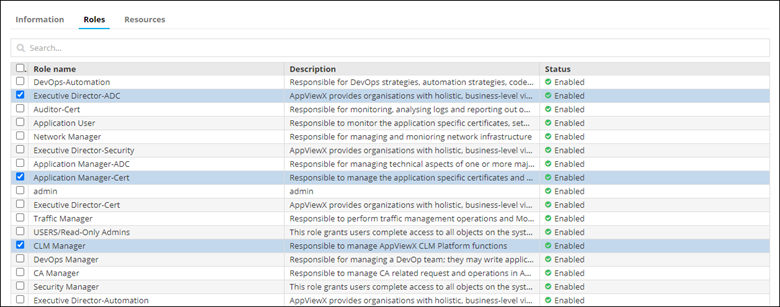
Note: A user group can be assigned to more than one role and resource in the system. A user assigned to a user group with more than one role or resource has all of the permissions of all of the roles and resources to which he or she is assigned. If one resource has only Read access to a component and another resource has Read/Write access to the same component, the higher-level access permissions (Read/Write) take precedence and the user has Read/Write access.Note: Admins who associate User Groups to Roles and Resources may skip/forget to associate User Groups to a user. To overcome this, an alert icon has been added to the User Group inventory to notify if the group is not associated with a role, resource, or both.