Upgrading Licenses
Note: AppViewX blocks the usage of the license if the license
has expired. If an organization exceeds the threshold of license (maximum number
of ADC+ objects, CERT+ certificates, and/or SECURITY+ devices allowed), a
warning is issued as a reminder. A pop-up warning is issued for both the
scenarios.
To upgrade a license:
-
To access the navigation pane, in the top-left corner of the screen, hover the
mouse pointer over the
 icon.
icon.
-
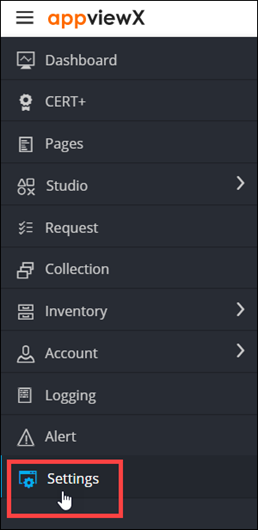
From the menu displayed, click Settings.
-
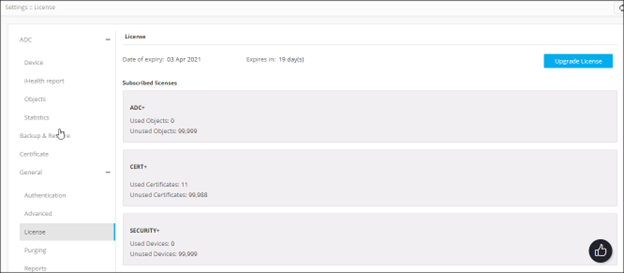
On the Settings page, from the navigation pane on the left, click
General and select License.
The Settings :: License page is displayed.
-
To upgrade a license, from the top right corner of the screen, click Upgrade
License.
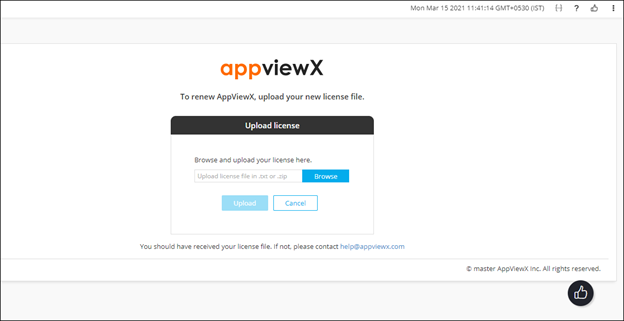
A screen that lets you upload the license file is displayed.
-
In the Upload License dialog box, to upload a license file, click
Browse.
Note: License files only in the following formats can be uploaded: .txt and .zip.
- Navigate to the location of the license file, select the file , and click Open.
- Click Upload.