SMTP Configuration
To get the certificate reports sent as a mail, we will have to first configure SMTP
- Log in to the AppViewX application with valid credentials.
- Click on the menu button.
The left navigation pane appears.
-
Click Settings.
The Settings page appears.
-
Expand the General menu and then click SMTP.
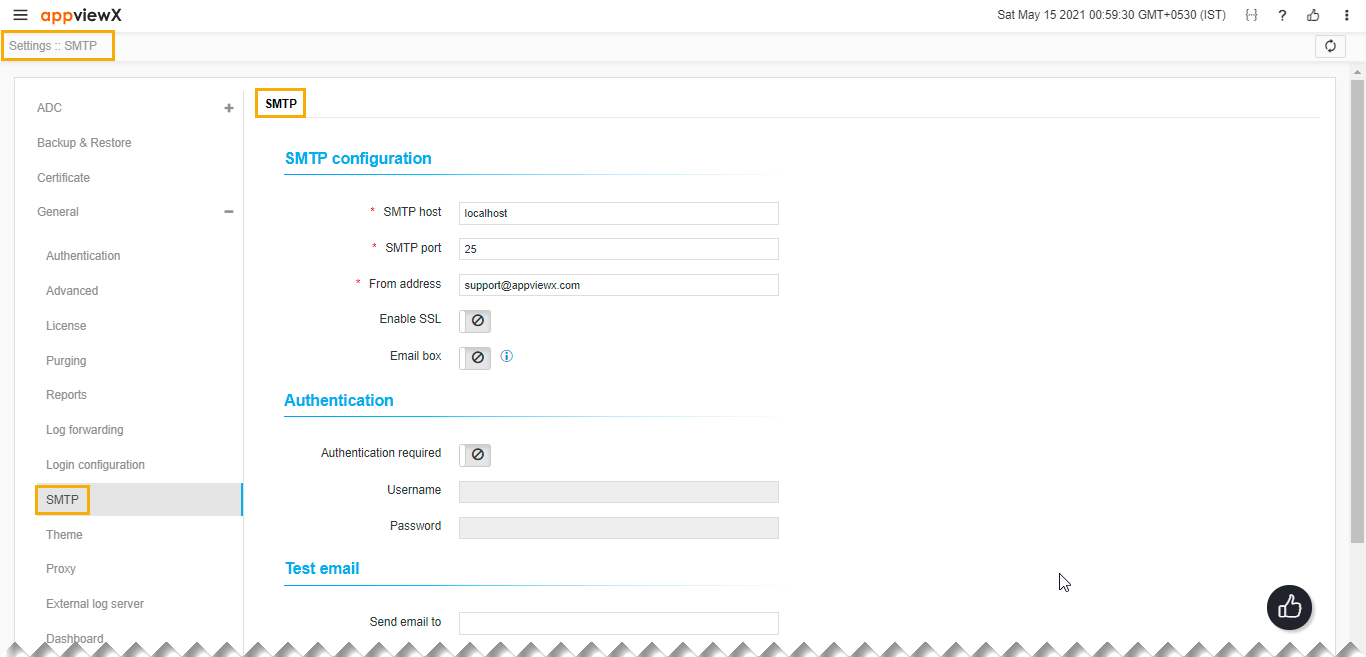
- Refer to the fields in the table below to update the information on the SMTP page.
| Name | Type | Mandatory | Description | Error Message |
|---|---|---|---|---|
| * SMTP host | Text | Yes | The server that will send the email. | Enter valid Hostname/ IP address <x.x.x.x>. |
| * SMTP port | Text | Yes | Port to connect to the email server. |
|
| * From address | Text | Yes | Mail address from which mail is to be received by the user. |
|
| Enable SSL | Toggle button | No | To enable/disable SSL while sending mail. | NA |
| Email box | Toggle button | No | Enabling this setting will use IMAP for the mailbox. | NA |
| Text | Mandatory if Email box is enabled. | Email for IMAP. |
|
|
| Password | Text | Mandatory if Email box is enabled. | Password for IMAP. | This field is mandatory. |
| * Hostname | Text | Mandatory if Email box is enabled. | The hostname for IMAP. |
|
| Authentication required | Toggle button | No | To enable/disable Authentication required. | NA |
| * Username | Text | Mandatory if Authentication required is selected as true. | The username if authentication required. | NA |
| * Password | Text | Mandatory if Authentication required is selected as true. | Password if authentication required. | NA |
| * Send email to | Text | Mandatory if you want to test. | Test email to check if able to send mail after configuring the above settings. |
|
|
Note: The asterisk (*) symbol indicates a mandatory
field.
|
||||