Downloading Client Certificates Via Holistic View
Client certificates can be downloaded via holistic view only one certificate at a time in multiple formats as PEM, DER, PKCS#7, PKCS#12, and JKS. PKCS#12 and JKS can be downloaded only with the password-protected certificate.
Steps to download client certificate,
- Log in to AppViewX application with valid credentials.
-
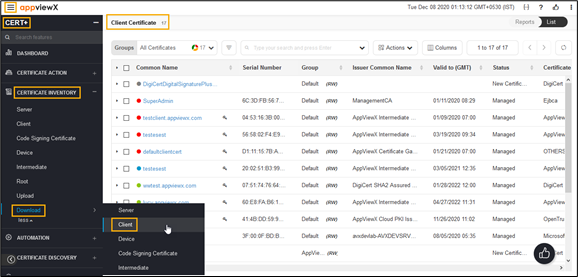
Click the menu button located in the upper left corner of the screen.
The left navigation pane appears.
-
Click CERT+.
The CERT+ left navigation pane appears.
- Expand CERTIFICATE INVENTORY.
-
Click Client.
The Client Certificate page appears.
-
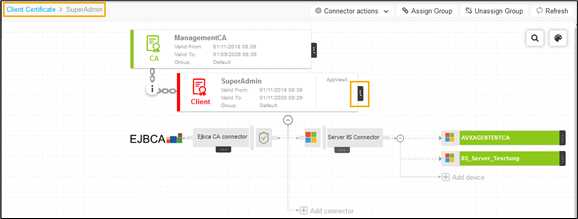
In the Common Name column certificate list, select the desired certificate(s)
that you want to download the CA.
The holistic view appears.
-
Click vertical ellipse in the holistic view, and then select Download
Certificate from the list.
The Download Certificate pop-up window appears.
- Select the file format from the Certificate Type list.
- For PEM and DER certificate types, you can use the toggle button to On/Off in the Download Truststore Certificates option along with end certificates.
-
Click Yes.
The certificate(s) is downloaded to your local machine.