Downloading Code Signing Certificate
Code Signing certificates can be downloaded via holistic view only one certificate at a time in multiple formats as PEM, DER, PKCS#7, PKCS#12, and JKS. PKCS#12 and JKS can be downloaded only with the password-protected certificate.
To download code signing certificate,
- Log in to AppViewX application with valid credentials.
-
Click the menu button located in the upper left corner of the screen.
The left navigation pane appears.
-
Click CERT+.
The CERT+ left navigation pane appears.
- Expand CERTIFICATE INVENTORY.
-
Click Code Signing Certificate.
The Code Signing Certificate page appears.
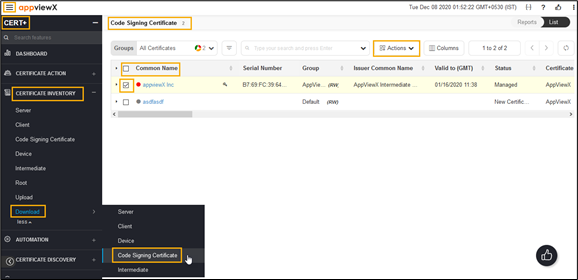
- In the Common Name column certificate list, select the desired certificate(s) that you want to download.
-
Click Actions, and then select Download Certificates from the
list.
The Download Certificates popup window appears.
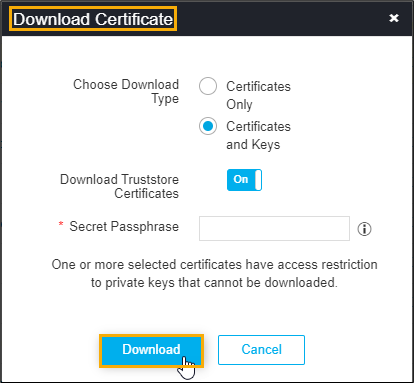
- In the Download Certificate pop-up window, select Certificates Only or Certificates and Keys.
- You can also enable/disable Download Truststore Certificates
option along with the end certificates. Note: If you have permission to view the restricted content mentioned in Step 7, the certificate details are downloaded with <.zip> file. If you do not have the necessary permissions, the system creates and downloads an empty <.zip> file to the destination you specify.
- The system enables the Secret Passphrase field when you select
the Certificates and Keys option. Enter a passphrase to encrypt
the contents into a
<.ZIP>file.
- Click Download.
- To view details of the certificate, unzip the file and open the security certificate file.
- Click Details.