Prerequisite
To discover certificates from Managed devices, the device should be managed under the AppViewX Inventory. For onboarding devices into AppViewX inventory, refer to CERT+ Admin Guide.
To discover certificates from Managed Devices,
- Log in to AppViewX application with valid credentials.
- Click the menu button located in the upper left corner of the screen.
The left navigation pane appears.
- Click CERT+.
The CERT+ left navigation pane appears.
- Expand CERTIFICATE INVENTORY.
- Click Discovery, and then select Managed Devices
Scan.
The Add Discovery page appears.
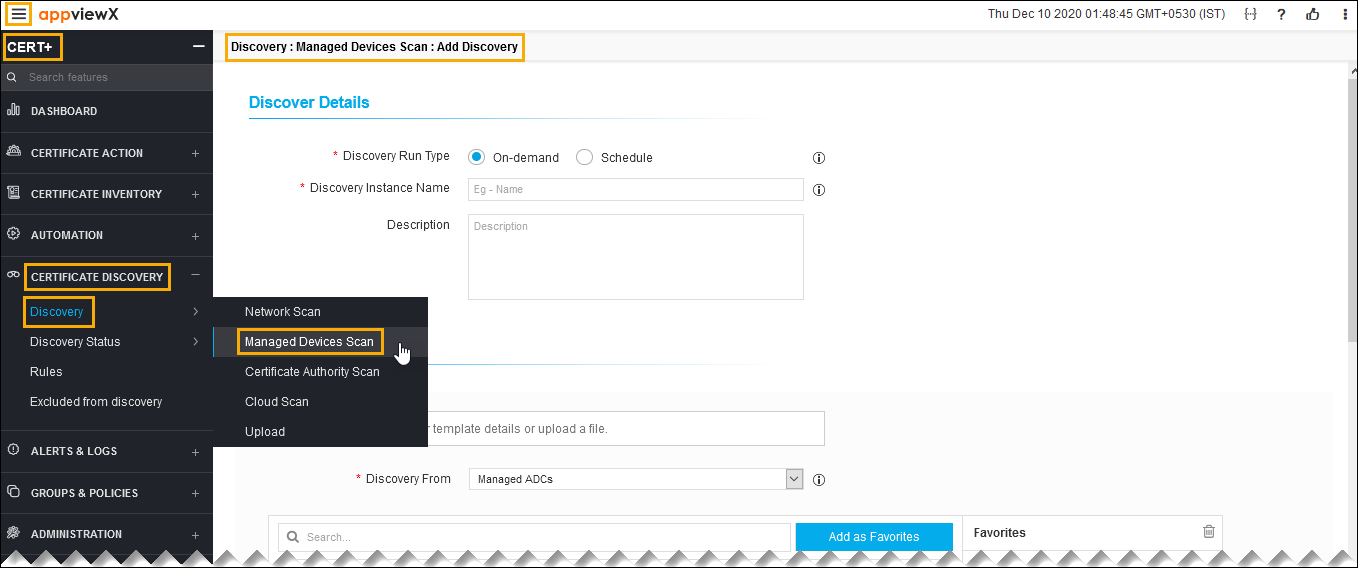
- In the Discover Details section, select/enter the details as follows.
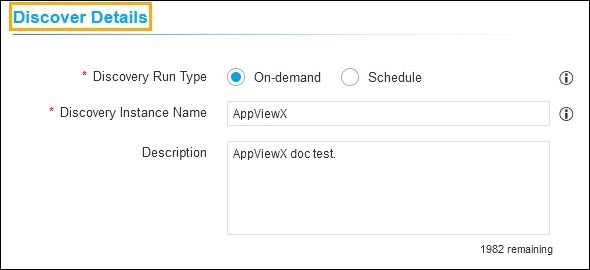
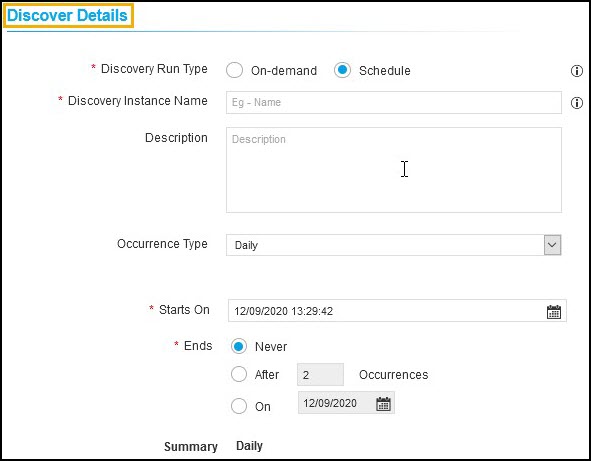 The following table describes the options available in the Discover Details section:
Field Description *Discovery Run Type Click the checkbox to select the desired discovery run type. The possible types are:
- On-demand - If performing an On-Demand discovery.
- Schedule - By scheduling the discovery, the user can automate the process for a defined time/ frequency.
If you select Scheduled discovery fill the below details.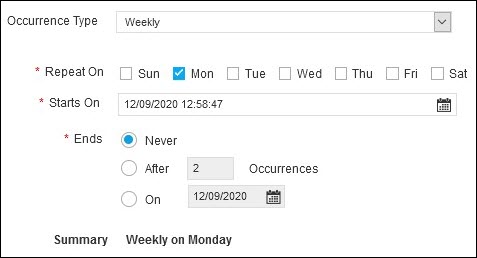
Field Description Occurrence Type Select the type of occurrence from the dropdown list.
The possible occurrences are:
- Daily
- Weekly
- Monthly
- Yearly.
*Repeat On Select a day in the week to schedule the weekly discovery.
Note:-
Repeat on is visible only when the Occurence type is selected as Weekly.
-
If Occurence type is weekly, select a day in the week to schedule the weekly discovery.
*Starts On Select the date to start the scheduled discovery. *Ends Select the desired last discovery.
- Never - Continues to discover the certificate.
- After - Stops the discovery process after the number of occurrences entered in the field.
- On - Stops the discovery process for the selected period from the calendar.
Note: AppViewX will trigger the discovery certificates process for that instance.Discovery Instance Name Enter the name of the discovery instance. Description Enter the required details in this field.
Note: You can enter a maximum of 2000 words in the field.Note: The asterisk (*) symbol indicates a mandatory field. - In the Discover By section, select/enter the details as follows.
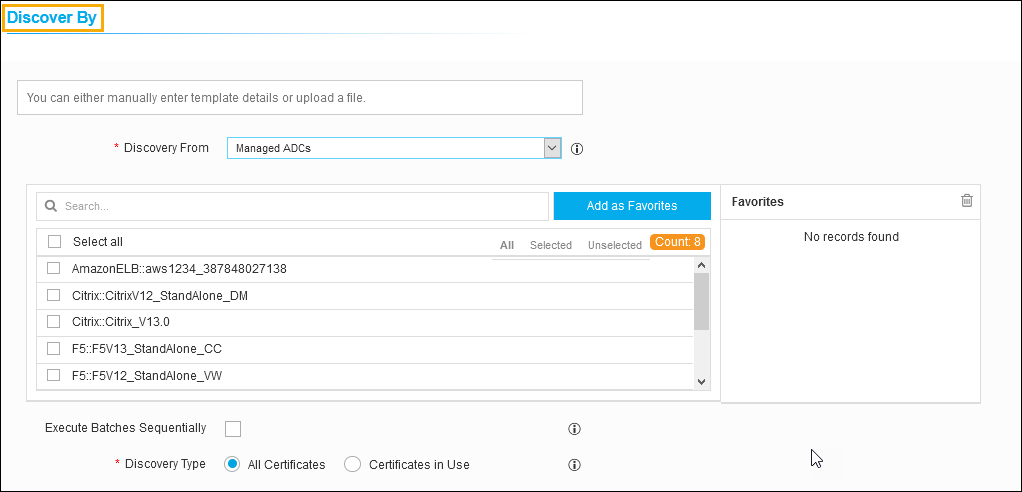 The following table describes the options available in the Discover By section:
Field Description *Discover From Select the source from the dropdown list to discover a certificate. The possible sources are:
- Managed WAFs
- Managed ADCs
- Managed Servers
- Managed MDMs
- Managed Firewalls.
Devices Window A list of all the managed devices will be shown in the devices window. Select devices to discover certificates from.
- Add as Favorites - You search the desired device and add as favorites.
- All - You can see all the devices from the list.
- Select - You can see all the selected devices from the list. Unselect - You can see all the unselected devices from the list.
- Delete - You can delete the favorite CAs from the list.
Note: The asterisk (*) symbol indicates a mandatory field. - Select the Execute Batches Sequentially checkbox if required.
- If enabled, Based on the minutes value provided in Interval Between Batches field AppViewX will give the duration gap between each batch execution.
- If disabled, Scanning Intensity can be decided. An increase in scanning intensity will increase the scanning speed and network load. Maximum connections from a discovery engine will be chosen based on the Scanning Intensity.
- Click the check box to select the Certificate Type.
- All Certificates
- Certificate in Use - Certificates associated with a service that must be discovered
- In the Discovery Rules section, select the Associate
Rule from the dropdown list.
Note: Set of filters created as a rule in the Rules menu. The selection of rules will apply respective filters on discovered certificates.
-
In the After Discover section, select/enter the details as
follows.
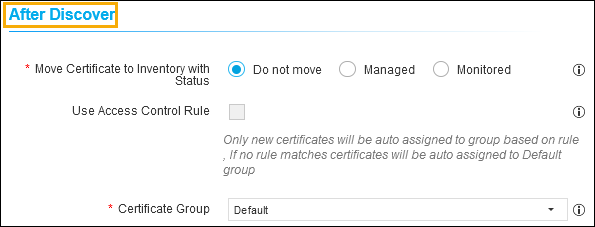 The following table describes the options available in the After Discover section:
Field Description *Move Certificate to Inventory with Status Click the check box to select the desired move certificate to inventory with status. The possible options are:
- Do not move - Newly discovered certificates and associated objects will not be moved to inventory.
- Managed - Newly discovered certificates and associated objects will be moved to inventory with status Managed.
-
Monitored - Newly discovered certificates and associated objects will be moved to inventory with status Monitored.
Note: If the discovered certificates already exist in the inventory, the certificate status will not be changed.
Use Access Control Rule Select the check box.
Note: If this checkbox is enabled, the certificate group will be associated automatically by the rule in access control.*Certificate Group Select the certificate group from the dropdown list. Discovered certificates will be associated with this provided group.
Note: If the discovered certificates already exist in the inventory, its certificate group will not be changed.Note: The asterisk (*) symbol indicates a mandatory field. - Click Discover or Schedule to perform an On-Demand or Schedule certificate discovery respectively.
- Click Reset to reset the form and re-loads the page.