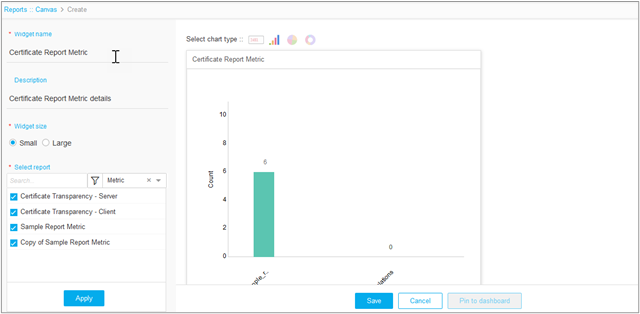
Create a New Widget
To create a new widget,
- Log in to the AppViewX application with valid credentials.
-
Click Menu > Studio > Reports.
By default, the My Reports page will be displayed.
- Click Widget on the top-left.
- Click + Create New Widget on the top-right.
- On the Create Widget page, enter a Widget Name and Description.
- Select the Widget Size: Small or Large.
- Under Select Report, select a report from the list or search for specific reports.
- Click Apply.
- Select a Chart Type: Metric, Bar, Pie or Donut.
- Click Save.
- Click Pin to Dashboard to pin the widget to the existing or new dashboard.
-
To enable the widget status, click the Status icon on
the top-right.