Configuring Quick links - Properties
- From the Build component in the left menu, under the Widgets section, drag and drop the Quick links widget to any blue highlighted space on the page.
-
To configure the Quick links component, hover your mouse over the widget and
click
 .
. 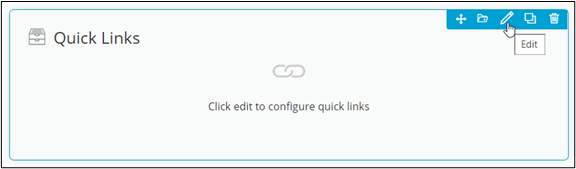 The Quicklinks Widget pop-up window opens with the Properties tab open by default.
 -
In the Quicklinks Widget window, under Properties, enter or
select the required field information.
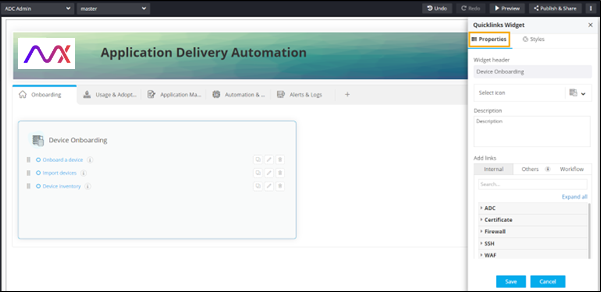 The following table describes the various fields under the Properties tab:
Field Description Widget Header Provide a name for the Widget Header. For example: Quick Links. Select icon Select an icon for the Quick Links widget from the dropdown. Add Links You can add three types of links here: - Internal: Add an internal link from within AppViewX pages.
- Others: Add links to other pages within AppViewX or embed external cross origin enabled pages.
- Workflow: Add a workflow link which redirects to the workflow execution page.
- Click Save.