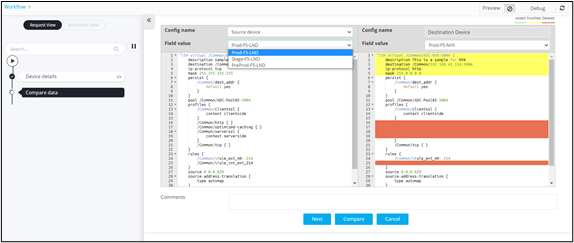
Configuring an Advanced Diff Checker 
- Design a workflow.
- From the User Interface section, drag and drop the Diff Checker task.
- In the Diff Checker task window, under Properties, in the Configurationsection, select Diff type as Advanced.
-
Enter or select the field information as required.
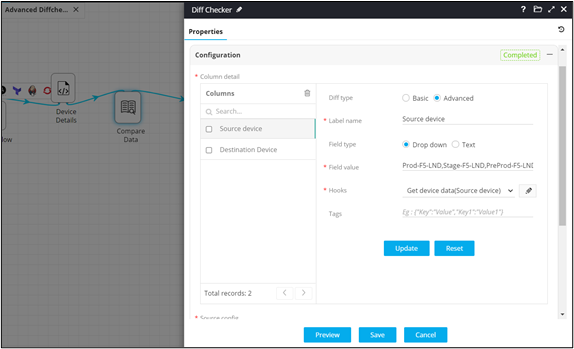 This table describes the field information in this section:
Field Description *Label Name Define custom label names as headings for every diff checker column. Field Type Allows you to define the input required to execute a hook dynamically during the diff checker view in real time. It allows for either providing the inputs dynamically as:
- Text: Values can be entered within a text box which will be taken as an input variable to execute the hook.
- Dropdown: Inputs to execute the hooks can be defined as dropdown values allowing hooks to trigger dynamically.
*Field Value Define either a static or dynamic value through a variable to be displayed in the dropdown field. *Hooks Select an existing hook from the Hooks Inventory or define a custom hook specific to the diff checker task. All asterisk (*) marked fields are mandatory. -
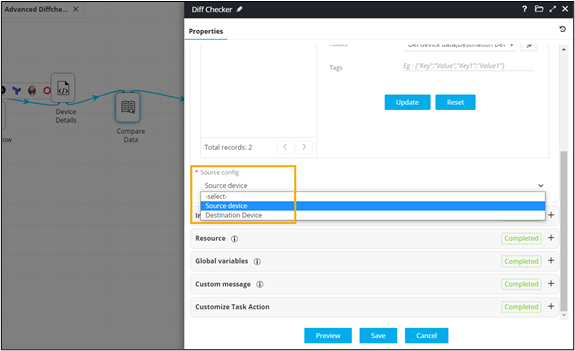
Under Source config, select the source column against
which the diff checker comparison must be made.
- Connect the workflow tasks.
-
From the command bar on the top, click Preview.
Advanced Diff Checker allows you to compare the data.