| Sizing
|
Allows you to increase/decrease the height and width of
the widget. |
| Widget Background |
The following options are available here:
- Add Background Pattern: To add a
background pattern to the widget, select the Add
Background Pattern checkbox and select a
pattern from the available options.
- Widget Background Color: To add a
background color to the widget, deselect the Add
Background Pattern checkbox and select the
color from the color palette.
- Widget Border Color: Allows you to change the
color of the widget border.
|
|
Widget Header
|
The following options are available here:
- Header Text Color: Allows you to
change the color of the header text.
- Header Text Size: Allows you to
select the size of the header text.
- Header Text Underline: To underline the
header text, select the Header Text Underline
checkbox.
|
|
Widget Description
|
The following options are available here:
- Label text Color: Allows you to
change the color of the label text.
- Label Text Size: Allows you to select the
size of the label text.
|
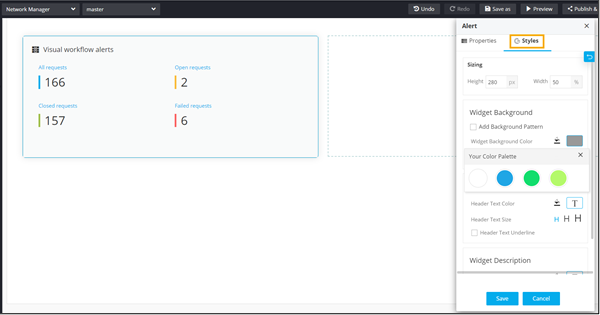 This table describes the options available under the Styles tab: