Configuring Syslog Alert Notification
AppViewX subscribes to all device-level logs, where it acts as a Syslog listener. The logs of any
devices added in AppViewX can be viewed as Syslog by navigating to Logging > Syslog. However, devices tend to generate huge amounts of data, a Syslog alert is a convenient way to get notified about a specific event that is of importance to you. It also allows for a closed-loop remediation by associating workflows.
To configure a Syslog alert notification:
- Go to Menu > ADC+ > ALERTS & LOGS > Alerts.
-
Click
 (Settings) icon, and then ADC.
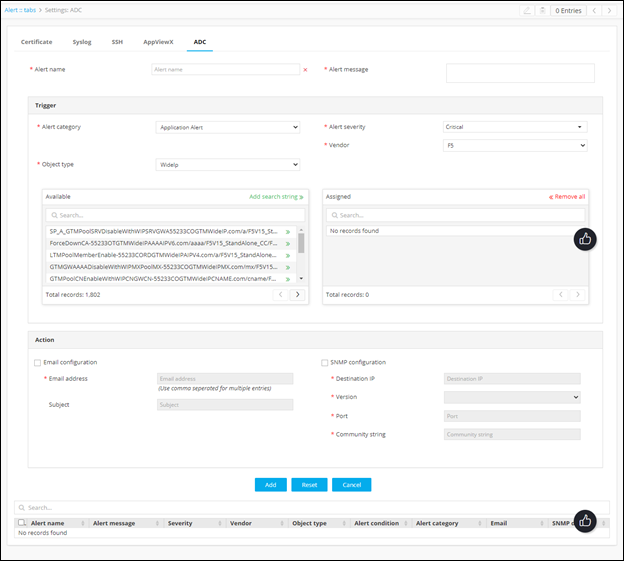
- Enter an Alert name and Alert message.
- Select the Alert Category from the drop-down list. The options are Application Alert and Device Alert.
- Select the Alert Severity from the drop-down list.
-
Configure the critical Device/Applications that need to be
monitored.
Note: Rather than adding devices manually, you can click the Add search string link and create a search string that automatically assigns all existing objects or devices that match the filter criteria. The benefit of using a search string rather than selecting devices manually is that the search string continues to work in the background and auto-assign all new devices if the devices match the search criteria you set up.
- Add the Pattern/Regex that needs to be monitored on the Syslog received. Multiple strings can be provided with comma-separated, which will be considered as Boolean AND operator.
-
Following are some of the alerts that can be configured,
-
Sample syslog - <133>Sep 19 04:24:38 bigip-40-152 notice mcpd[6046]: 01070417:5: AUDIT - user admin - transaction #84153993-4 - object 0 - create { virtual_server_profile { virtual_server_profile_vs_name \"/Common/testVs\" virtual_server_profile_profile_name \"/Common/tcp\" virtual_server_profile_profile_type 5 virtual_server_profile_profile_context 0 } } [Status=Command OK]\n
-
For instance, if the Syslog alert is configured for the object and Regex pattern is given as “create” Whenever an object is created and a Syslog is received for that object as above. An alert will be raised for the same and notified to the user.
-
You can also pass certain metadata from the alert to the workflow. In the Metadata section, enter a key and its associated value in the respective fields. This is the additional information that will be used by the workflow that is going to be associated with.
-
- Associate any out of the box or custom workflow that needs to be executed on the occurrence of a configured Syslog event.
- Configure multiple Alerts as needed and Add it to the Grid. The configured Alerts could be modified or deleted anytime by selecting the Alert from the grid.