AppViewX PKIaaS Native CA
Configuring AppViewX PKIaaS Native CA
- Go to > > > .
- Click the +Add icon on the top right of the page.
- Select the AppViewX PKIaaS in the left side vendor list.
- Click Configure Now.
- Select the AppViewX PKIaaS Native tab.
- Enter the name of the CA account in the CA Account Name field.
-
Select Activate.
Note: The procedures available in the AppViewX PKIaaS CA account will be fetched and listed for the specific user.
Validating AppViewX PKIaaS CA
Once the AppViewX PKIaaS settings are added, the validation must be done to check whether the connection between AppViewX and AppViewX PKIaaS is configured properly.
- Go to > > >
- Select the AppViewX PKIaaS in the left side vendor list.
-
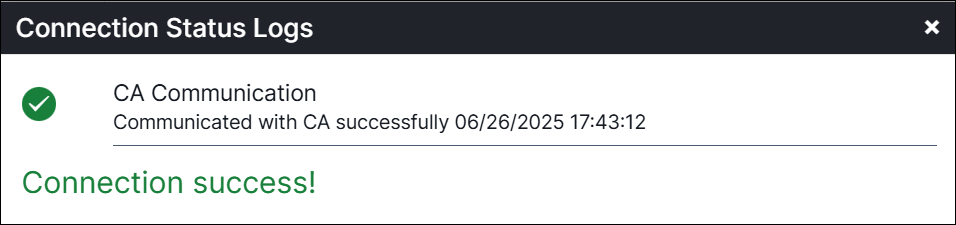
Under the AppViewX PKIaaS Native CA tab, click Check to validate the
CA setting that is created.
The CA communication will be validated and the Connection Status will be shown as either Success or Failure.