Enable the Consul and Vault
Tip: It is recommended to configure the vault in two
nodes and the consul in three nodes for a multinode. In case of multinode, run the
command
$ appviewx --conf-sync to update the changes across all the
cluster nodes.The Consul and vault are enabled to store and manage the data in a secure manner. The Consul must have been configured in an odd number of nodes and the Vault must have been configured in the node where a consul is configured. Also, it is not mandatory to configure a vault in the database nodes.
To enable the consul and vault:
- Go to the <avx_installed_path>/conf directory.
- Go to the appviewx.conf file.
-
Execute the following command to enable the consul and vault:
$ vi appviewx.conf -
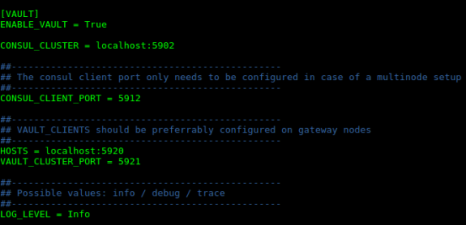
Set the ENABLE_VAULT field in the VAULT section to TRUE
and update the following fields to install the consul and vault components:
- CONSUL_CLUSTER
- CONSUL_CLIENT_PORT
- HOSTS
- VAULT_CLUSTER_PORT
- LOG_LEVEL
-
When you are done editing the fields, press the ESC key on your
keyboard, then type
:wqto save and quit the file. -
Execute the following command to initialize the configuration changes:
$ appviewx --initialize all -
Execute the following command to set up and initialize the vault:
$
                        appviewx --vault-setup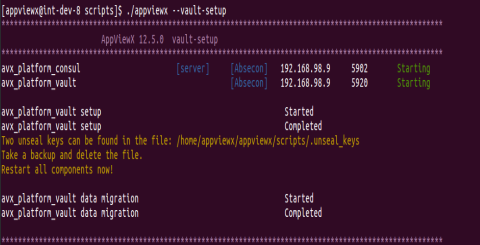
-
Restart all the components to start with the vault configurations by executing
the following command:
$ appviewx --restart all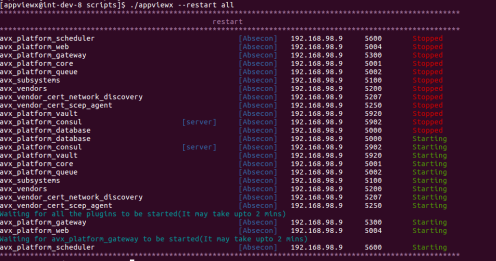
-
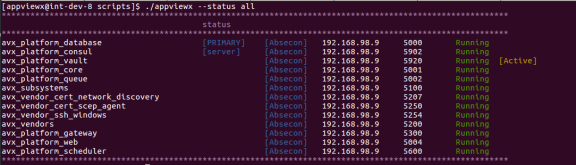
Check the status of the components by executing the following command:
$ appviewx --status all