Customizing the Email Attachment Representation
-
To access the navigation pane, in the top-left corner of the screen, hover the
mouse pointer over the
 icon.
icon.
-
From the menu displayed, click Settings.
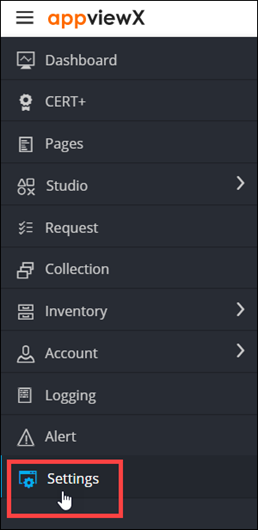
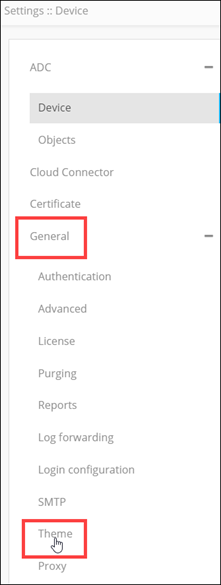
- On the Settings page, from the navigation pane on the left, click General.
-
Under General settings, click
Theme.
 The Settings :: Theme page is displayed, with the Logo tab open by default.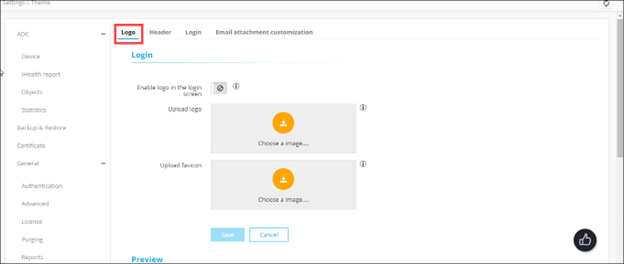
-
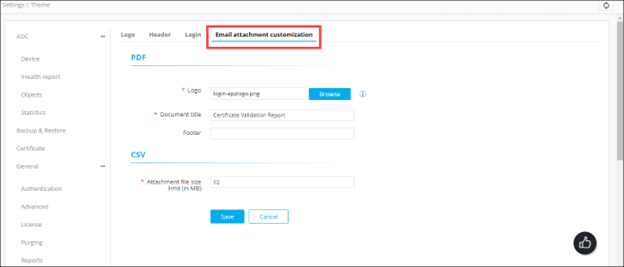
Click the Email attachment customization tab.
-
In the PDF section, enter the following details:
Field Description *Logo To upload a logo image for the attachment: - Click Browse.
- Navigate to the location of the image, select the image, and click Open.
Note: The image size must be less than 5 MB.*Document title Name to be assigned to the PDF when is it is downloaded. Footer Footer content to be added to the PDF. -
In the CSV section, enter the Attachment file size limit (in
MB).
Note: This is a mandatory field.
- To apply the changes configured above, click Save.