Customizing the Screen Header
-
To access the navigation pane, in the top-left corner of the screen, hover the
mouse pointer over the
 icon.
icon.
-
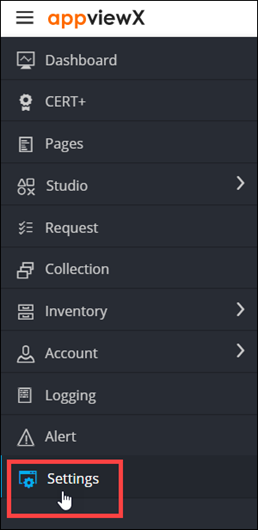
From the menu displayed, click Settings.
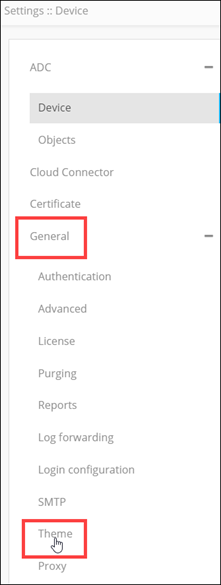
- On the Settings page, from the navigation pane on the left, click General.
-
Under General settings, click
Theme.
 The Settings :: Theme page is displayed, with the Logo tab open by default.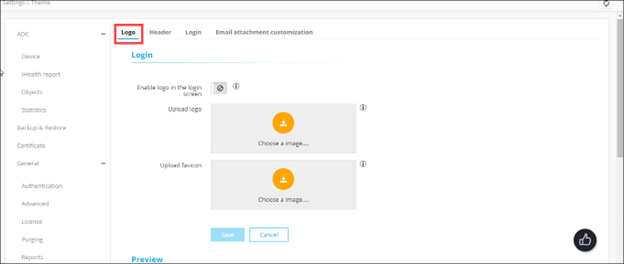
-
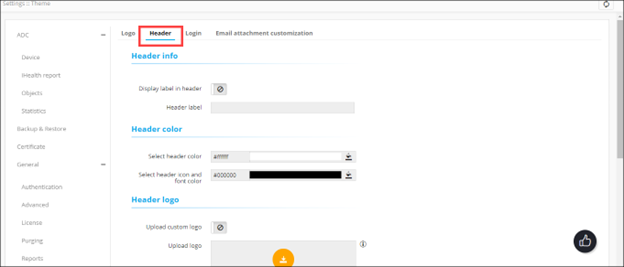
To customize the screen header, click the Header tab.
-
In the Header Info section, enter the following details:
Field Description Display label in header To display custom header text, turn on this toggle. Header label Enter the custom header text. Note: This field is enabled only when the Display label in header toggle is turned on. -
In the Header color section, enter the following details:
Field Description Select header color To set a color for the header text:- Enter the hex code of the required header color.
OR
- To select a color, click
 .
.
Select header icon and font color To set a color for the header icon and the font:- Enter the hex code of the required color.
OR
- To select a color, click .
- Enter the hex code of the required header color.
-
In the Header logo section, enter the following details:
Field Description Upload custom logo To insert a custom logo image in the header, turn on this toggle. Upload logo Note: This field is enabled only when the Upload custom logo toggle is turned on.To upload a logo image:- Click
 .
. - From Windows Explorer, navigate to the location
of the image, select the image, and click
Open.Note:
- Image formats allowed for upload: .png and .svg
- Maximum image resolution allowed: 865 X 185 (width X height)
- Image size: < 5 MB
- Recommended image dimensions: 175 X 37 (width X height)
- In the Confirmation Message dialog box, click Yes.
- Click
- In the Preview section, view a preview of your header customization.
- To apply the changes, click Save.