Importing a User
-
To access the navigation pane, in the top-left corner of the screen, hover the
mouse pointer over the
 icon.
icon.
-
From the menu displayed, click Account >
User.
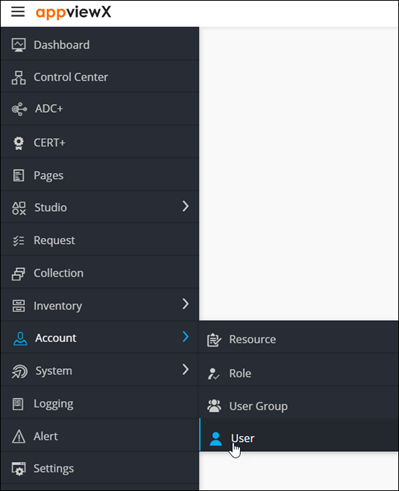
The User page is displayed.
-
From the top right corner of the screen, click
 .
.
-
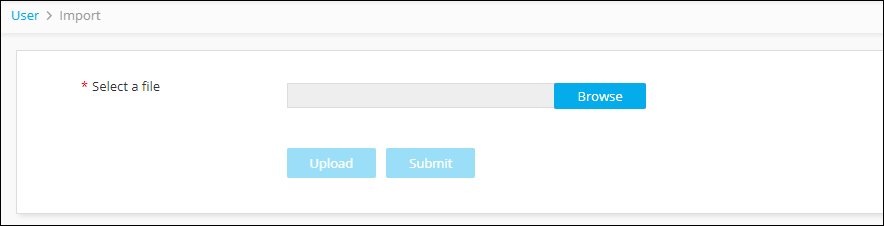
The Import screen is displayed.
-
Click Browse and select the user file to upload.
Note: The file must be in .csv format. To download a sample template file click the
 icon on the top-right corner.Tip: The most efficient way to import user details is to download the sample import file that is available by clicking the (Sample file) icon in the Command bar of the Import screen, modify the
contents, save it, and then import it into the system. This reduces the
chance of error messages appearing during the import process.
icon on the top-right corner.Tip: The most efficient way to import user details is to download the sample import file that is available by clicking the (Sample file) icon in the Command bar of the Import screen, modify the
contents, save it, and then import it into the system. This reduces the
chance of error messages appearing during the import process. -
Click Upload to see the user details displayed in the
user interface.
Note: The user details displayed at this point are only for review; the user details have not been imported yet.
- Review the details of each user in the import file. If you do not want to import specific users, deselect the checkboxes beside their names.
- Click Submit.