Ansible Executor
The following is a sample illustration to integrate Visual workflow and Ansible with
Ansible as a southbound. This will allow discovery of any existing playbooks and
further automate and orchestrate with Visual Workflow.
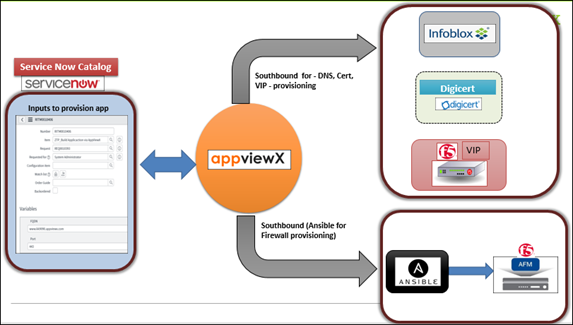
To connect to an Ansible instance, discover and reuse a BIG-IP playbook and integrate with Infoblox IPAM via Visual Workflow:
-
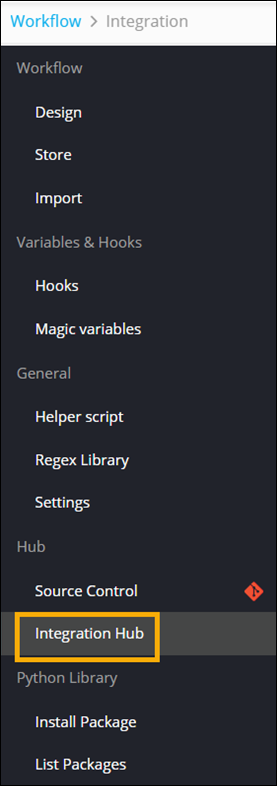
On the Workflow Inventory page, from the navigation pane on the
left, click Integration Hub.
-
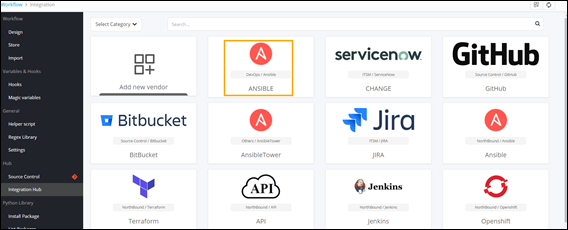
To configure an Ansible instance, click Ansible.
-
Enter the field information under the General section.
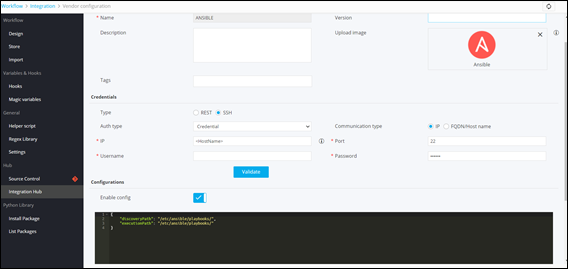
- Define the folder/path from where existing playbooks can be discovered within the workflow studio.
- Click Save.
- Design a new workflow.
- From the DevOps folder, select Ansible > Network Modules > F5.
- From the F5 folder, drag and drop the BigIP_Virtual_Server task into the workspace.
-
In the YAML Editor task window, under
Properties, in the Global
variables section, declare the global variable in this task to
pass data from the YAML task to the Ansible Executor on the southbound.
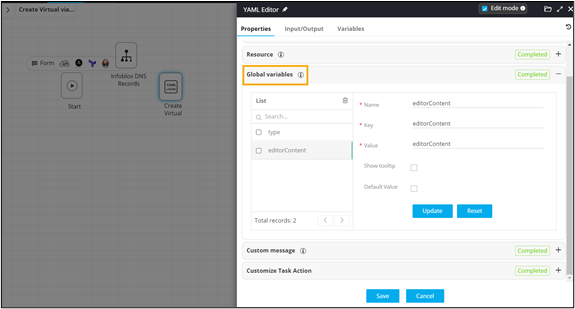
- From the General section, drag and drop the Ansible Executor task.
- In the Ansible Executor task window, under Properties, select the Ansible host on which implementation is to be done.
-
Map the global variable from the YAML task.
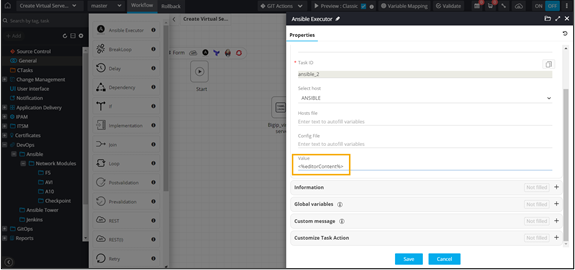
-
To auto-generate a self-service form, click Form above
the Start task.
Note: For more information on how to design self-service forms, refer to the section on Auto-generate forms.
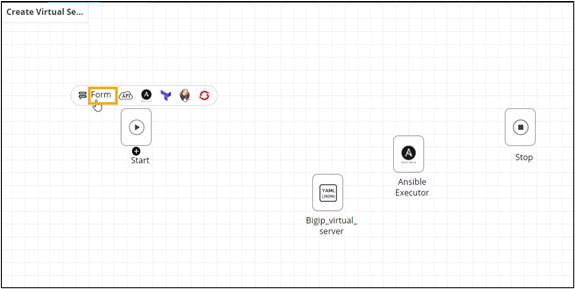
-
Connect the workflow tasks and enable the workflow.
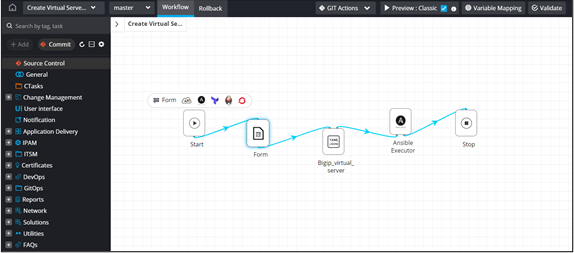
-
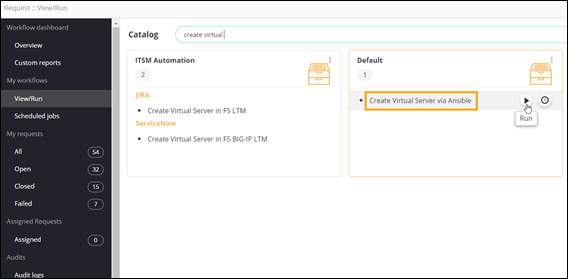
Trigger the workflow from the Request ::
View/Run page.
-
Enter the input details in the Form.
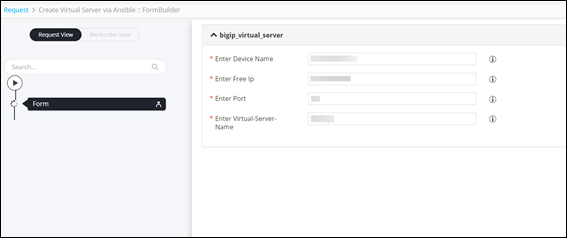
- Click Next.
-
Submit the YAML task.
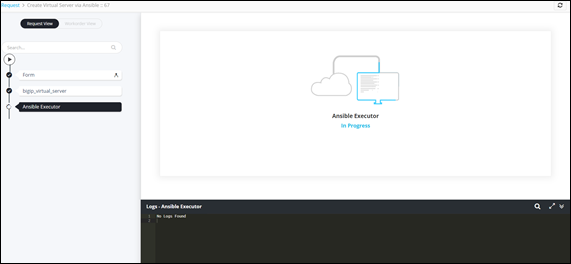
- Ansible Executor task in progress.
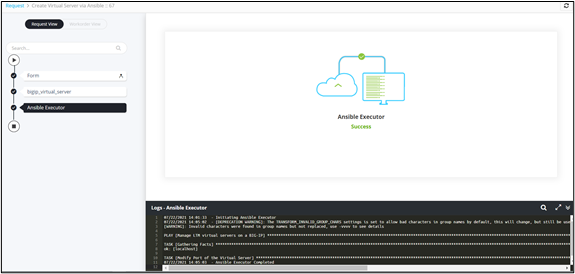
- Ansible Executor task completed.
- Ansible Executor task in progress.