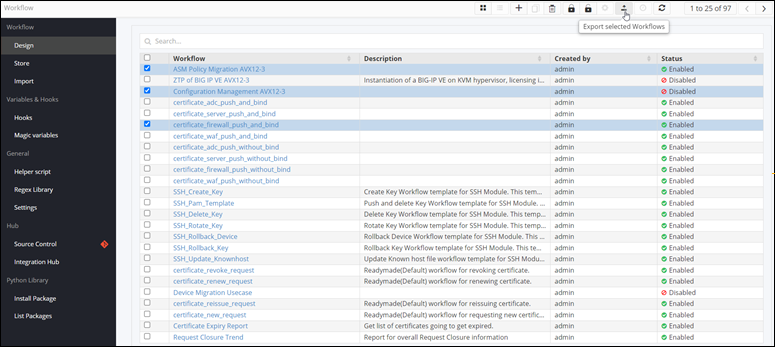
Exporting a Workflow
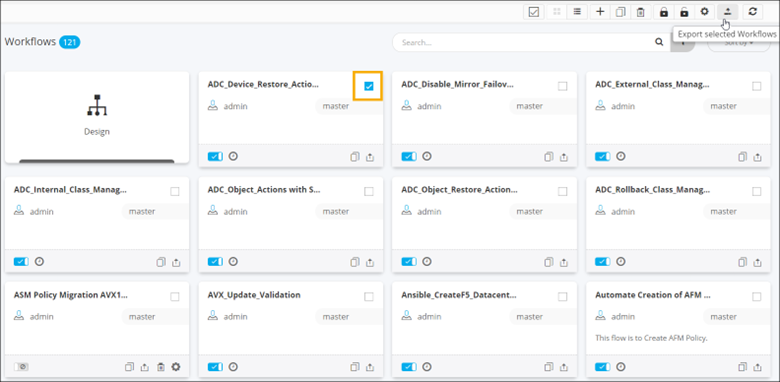
- On the Workflow inventory page (Card view), select the workflow(s) to be exported.
-
To export the workflow, from the command bar, click
 .
.
-
Click Ok in the Export
window.
The selected workflow is saved to your machine as a .zip file.
-
To export a flow, you can also click
 on the workflow card.
-
To export multiple workflows, you can either select them individually or click
 to
select all workflows displayed on the page and click from the command
bar.
to
select all workflows displayed on the page and click from the command
bar.
-
To export a workflow, when the Workflow inventory is in List
view, select the workflow(s) to be enabled and click .