Notify Unused VIP-StateStatusStatistics
This workflow fetches the unused VIPs' and notifies through email.
To run this workflow,
-
Go to
 Menu > Request > View/Run.
The Workflow Catalog page appears.
Menu > Request > View/Run.
The Workflow Catalog page appears. -
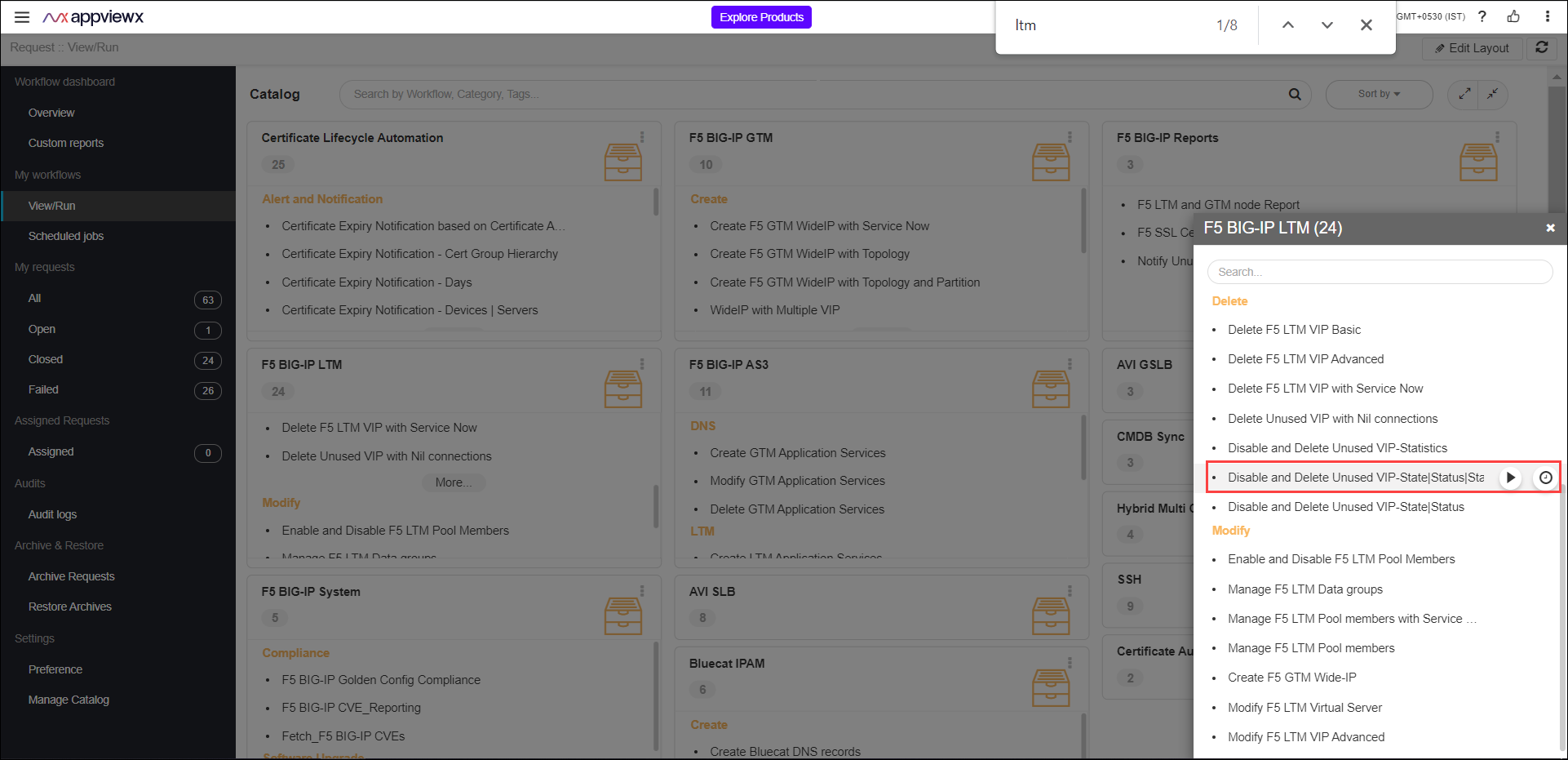
In the Workflow Catalog page, hover over the Notify Unused
VIP-StateStatusStatistics workflow.
The Run and Schedule buttons are shown.
-
Click the Run
 button.
The Form Input page opens:
button.
The Form Input page opens: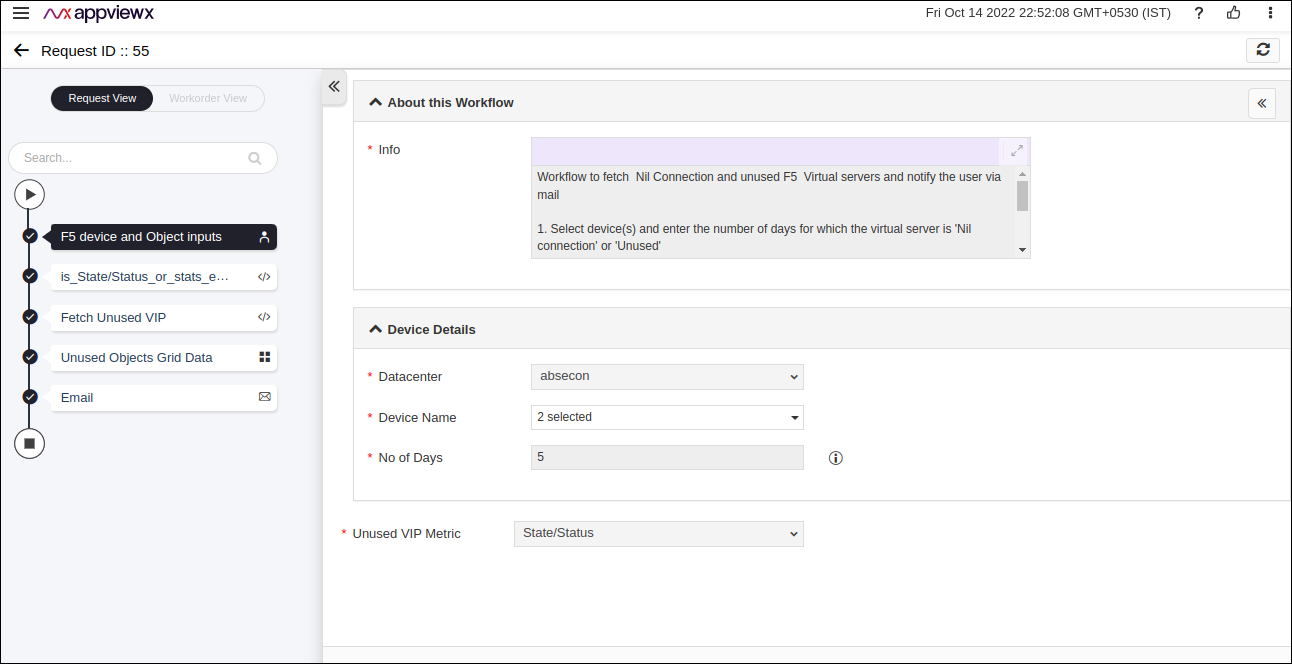
-
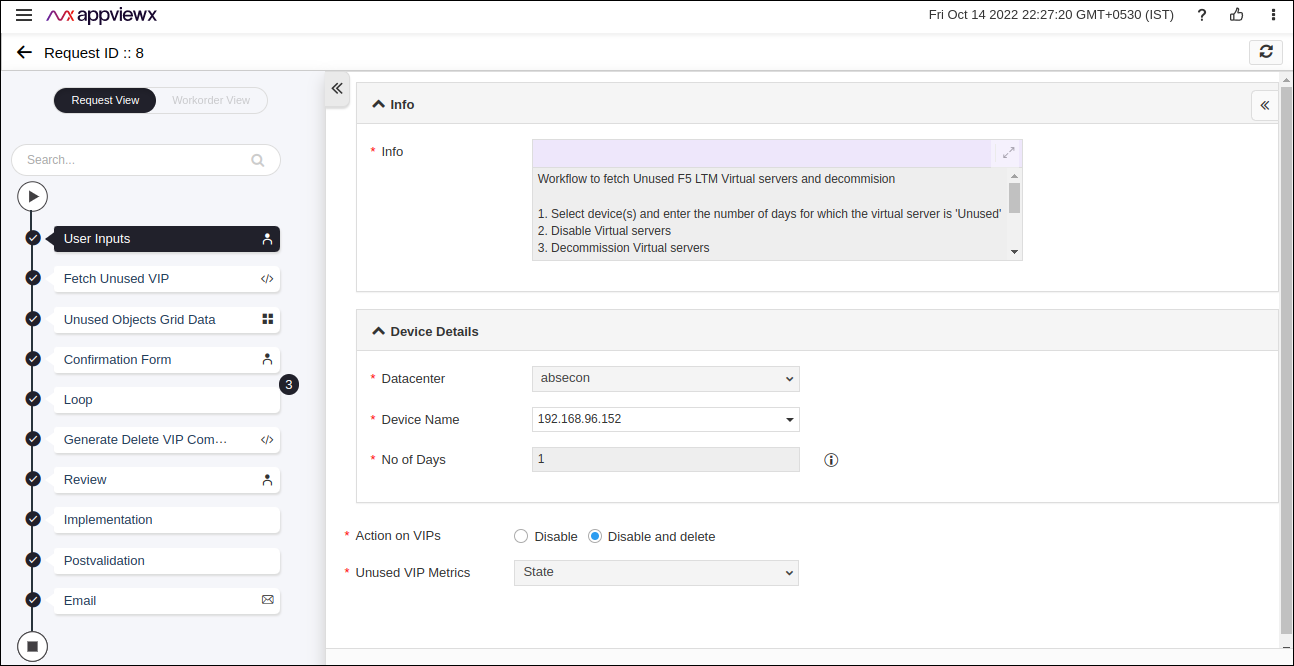
Enter or select the field information in the Form Input.
-
The following table provides the field description for the Form
Input:
Field Description *Datacenter Displays the list of datacenters of the devices, which are created in the Device Inventory. Select the datacenter of a device from the drop-down option for which this request is to be created. For the devices which are created without a datacenter in the Device Inventory, select the datacenter as None. *Device Name Displays the list of devices associated with the selected datacenter. If the datacenter is selected as None, the devices that are created without datacenter details are listed. Select the desired devices from the drop-down option. Note: Selecting multiple devices is possible.No of Days Enter the no. of days for which the virtual server's state and status is not used. *Unused VIP Metrics Choose the VIP's metrics for which the unused VIP has to be fetched. -
Click the Submit button.
The Confirmation popup opens.Note:
- If you want to save this form to edit it later, click the Save Draft button, and then click Ok in the Confirmation popup window. The form will be saved as Open request under Request > My Request.
- If you want to cancel this form, click the Cancel button.
-
Click Ok to submit the form.
The fetching unused VIPs starts automatically and reaches the Unused Objects Grid Data stage.
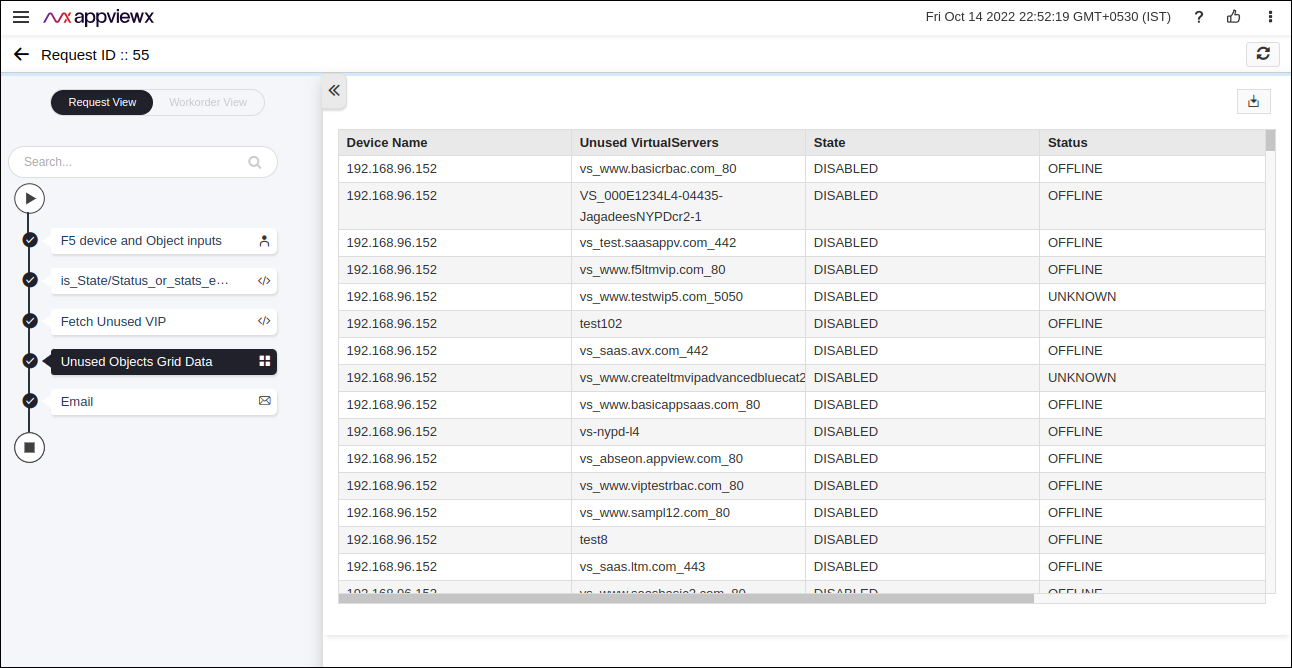
Note:- If there is any failure at this stage, start a new request by providing the correct data.
- Alternatively, select the failed request and clone it. Update the correct input data in the form input, and submit the workflow again.
- To download the Unused Objects Grid Data report,
click the Download (
 ) button.
-
Click the Submit button.
The Confirmation popup opens.
-
Click Ok to submit the form.
The validation starts automatically.
-
The workflow is created and the email is triggered to the configured email
IDs.
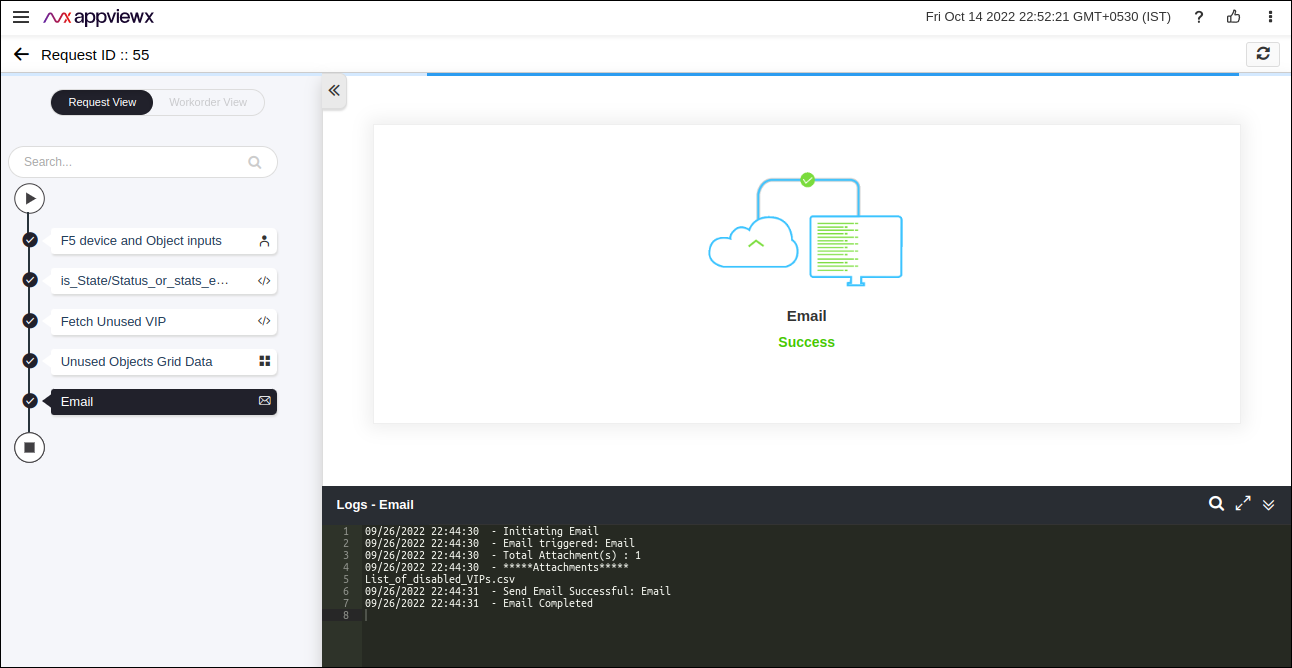
Note: The stages of the request are shown in the left-side of the screen. To view a particular stage of the request, click the respective stage.