Add Credentials
To add credentials for the server,
- Log in to AppViewX application with valid credentials.
-
Click the menu button located in the upper left corner of the screen.
The left navigation pane appears.
-
Click Inventory > Device
By default, the ADC tab opens.
- Click the Server tab.
-
Click the
 Credentials icon in the command bar.
The Credentials page is displayed. If credentials have been set up, a list of credential names with details will be displayed in a table as shown below.
Credentials icon in the command bar.
The Credentials page is displayed. If credentials have been set up, a list of credential names with details will be displayed in a table as shown below.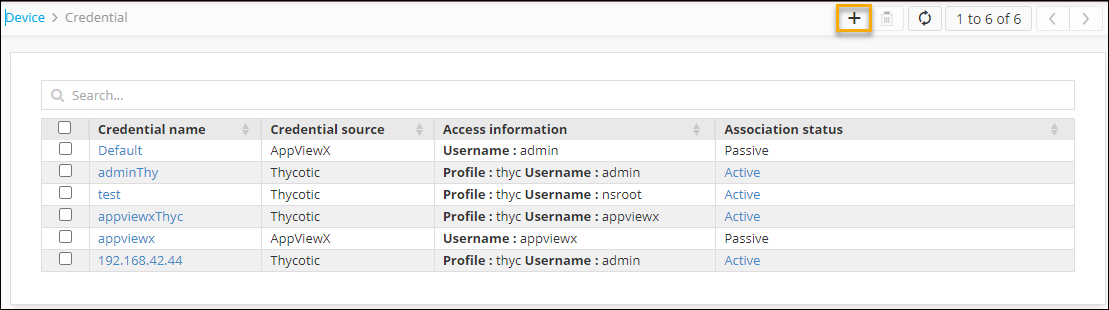
-
To add a new credential, click the plus or Add icon in the command bar
of the Credentials page.
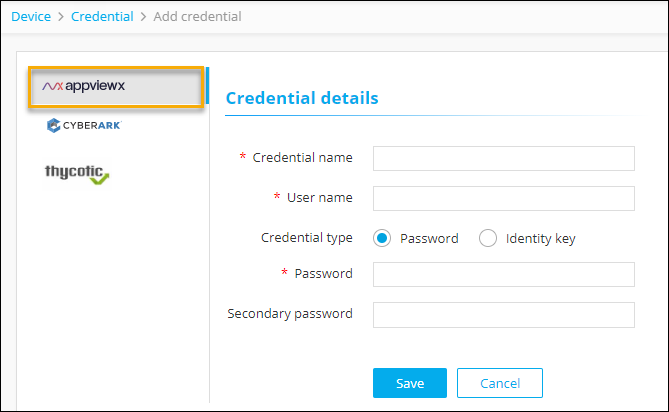
The Add Credential page is displayed with default credentials fields for AppViewX.
-
To set credentials for AppViewX,
Field Name Field Type Description *Credential name Text Enter a suitable credential name *User name Text Enter a suitable username Credential type (Password) - *Password
- Secondary password
Radio button - Text
- Text
Selecting the Password will display the Password and Secondary password text fields. Enter suitable values in both text fields. Credential type (Identity key) - *Identity key
- Passphrase
Radio button and Text fields Selecting the Password will display the Identity key field and the Passphrase text field. Select a suitable identity key using the browse button and enter a suitable Passphrase. Note: Field names with * (asterisk) are mandatory. -
To set credentials for CyberArk,
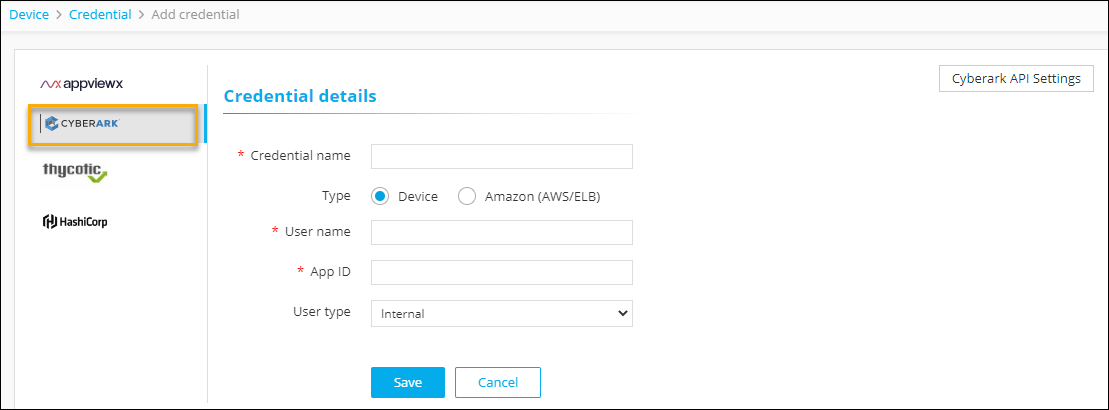
Field Name Field Type Description *Credential name Text Enter a suitable credential name Type (Device) - *User name
- *App ID
- *User type
Radio button - Text
- Text
- Dropdown
Selecting the Device will display the User name, App ID, and User Type fields. Enter suitable values in the fields. Type (Amazon (AWS/ELB)) - *AWS IAM username
- *App ID
- *AWS access key ID
Radio button - Text
- Text
- Text
Selecting the Amazon (AWS/ELB) will display the AWS IAM username, App ID and AWS access key ID text fields. Enter suitable values in the fields. Note: Field names with * (asterisk) are mandatory.Note: To configure the API Settings for CyberArk, click the Cyberark API Settings button on the right of the screen. -
To set credentials for Thycotic,
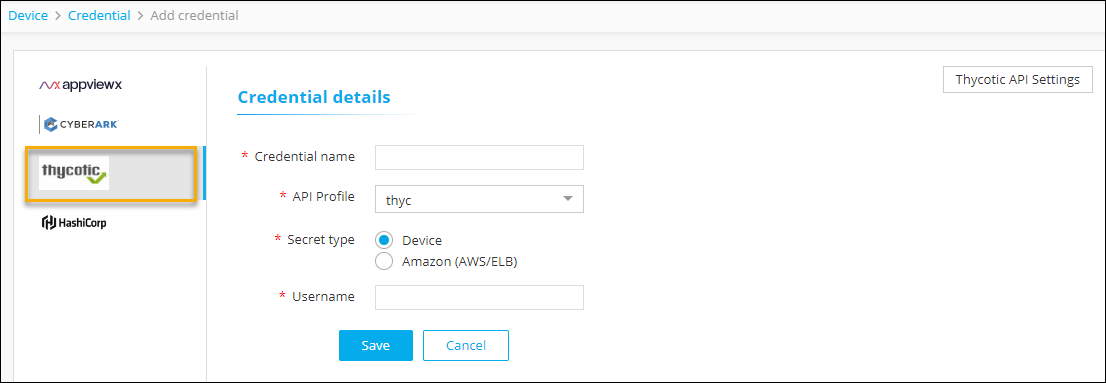
Field Name Field Type Description *Credential name Text Enter a suitable credential name *API Profile Dropdown Select the desired API profile from the dropdown Secret Type (Device) - *User name
Radio button - Text
Selecting Device will display the User name field. Enter suitable value in the field. Type (Amazon (AWS/ELB)) - *AWS IAM username
Radio button - Text
Selecting Amazon (AWS/ELB) will display the AWS IAM username text field. Enter suitable value in the field. Note: Field names with * (asterisk) are mandatory.Note: To configure the API Settings for Thycotic, click the Thycotic API Settings button on the right of the screen.