Export Server Details
To export the details of one or more servers,
- Log in to AppViewX application with valid credentials.
- Click the menu button located in the upper left corner of the screen.
The left navigation pane appears.
-
Click Inventory > Device.
By default, the ADC tab opens.
- Click the Server tab.
- If the server details you want to export are not listed on the screen, run a search to locate it.
- Click the checkbox beside the server name. If you are exporting details of multiple servers of the same kind, select the checkboxes for each one.
-
Click the
 Export icon in the command bar at the upper right of the screen.
- On the Export pop-up screen that appears, select the type of
information you want to export:
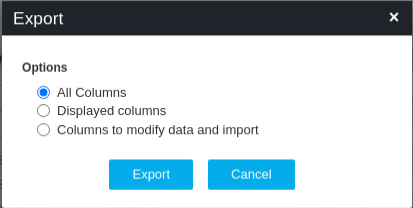
- All Columns - Select this option if you want to export all information about the server.
- Displayed columns - Select this option if you want to export only the information that is visible on the server screen. This is useful if you need to compare values or settings for different servers and do not have any need to see the less important data.
- Columns to modify data and import - Select this option if you are exporting device details to make modifications and then re-import the data into the Device Inventory.
- On the screen that opens, select the location where you want the device details file to go, then click Save.
- Cloud details will be downloaded as an Excel
<.xls>file.